
Once a purchase order has been created and submitted for review, before it is sent to the vendor, the purchase order needs to be reviewed by a purchase order manager (District / Regional Operations Manager).
Explore the following topics about Requested POs:
Viewing Requested POs
-
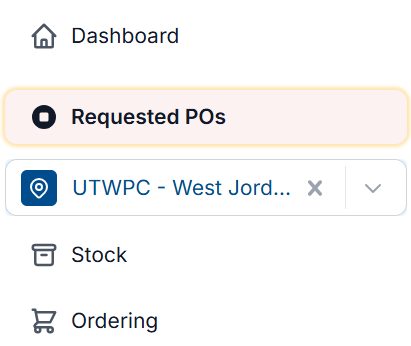
From the Dashboard, select Requested POs
-
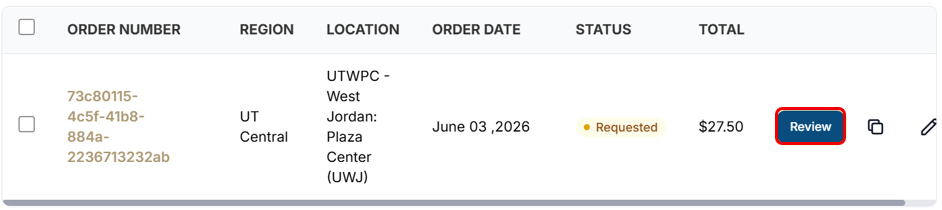
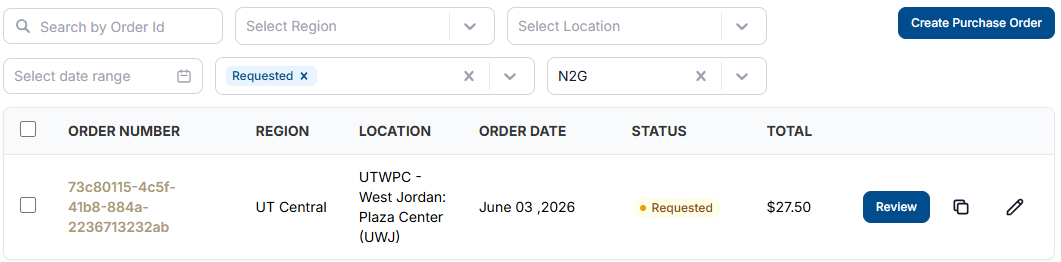
Once in the Requested POs tab, any purchase orders that have been requested for purchase placement will display. There are multiple table columns that will be shown
-
Order Number – The order number for the requested purchase order. This will be a random placeholder value until the purchase order is submitted. When the purchase order has been successfully sent to a vendor and has been approved by the vendor, the order number is updated to match the vendor’s order number that is created in their system.
-
Region – The region / district the purchase order was requested from
-
Location – The location from which the purchase order was requested
-
Order Date – The date the purchase order was requested
-
Status – The current state of the purchase order
-
Total - total cost of purchase order
-
-
Select Review on the purchase order that needs to be reviewed
-
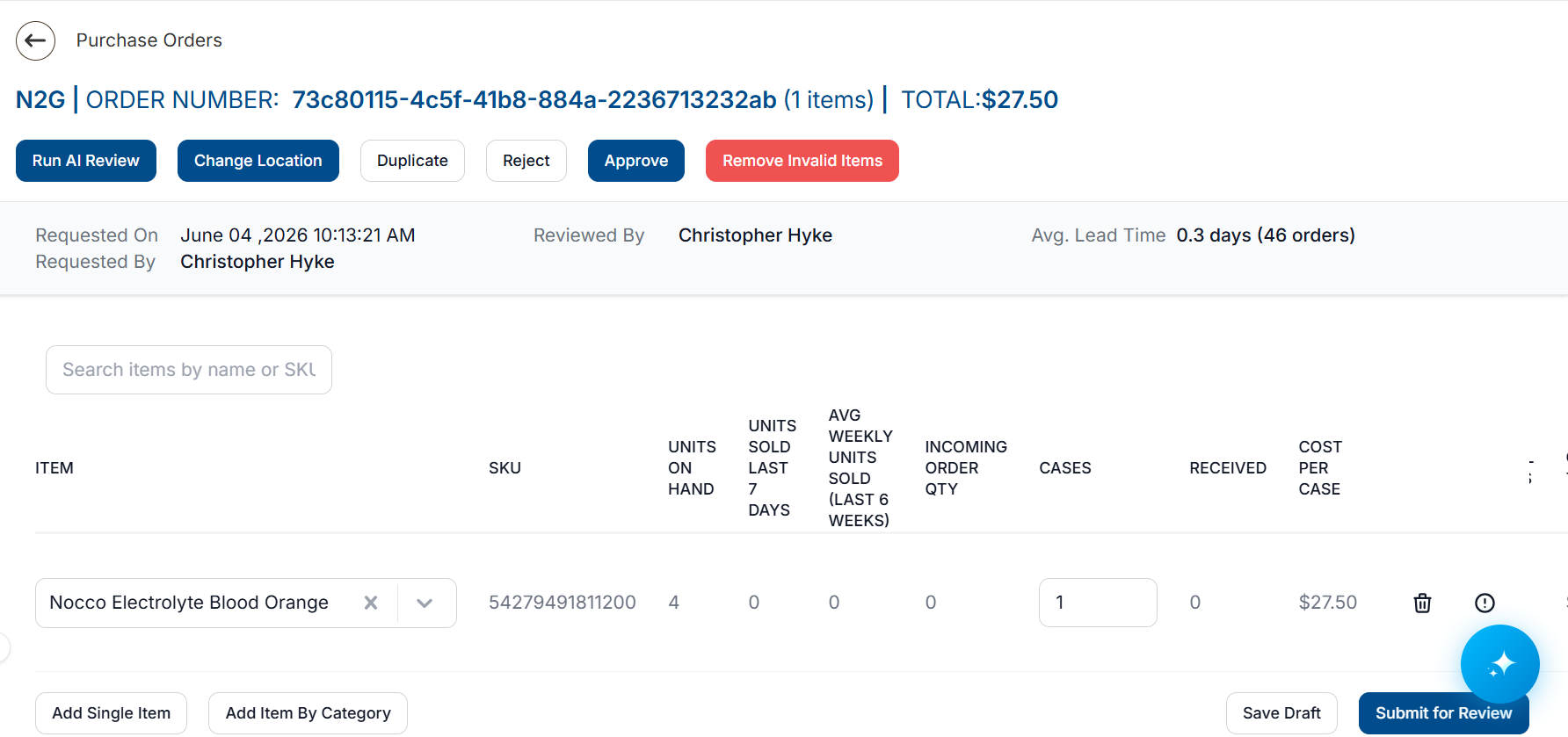
Once the purchase order is selected, the items requested on the purchase order and additional information will display:
-
Requested On – When the purchase order was requested
-
Requested By – The user who requested the purchase order
-
Reviewed By - Who reviewed the purchase order. If the purchase order has not yet been approved, the requester's name will be shown
-
Avg. Lead Time - average time for orders to be fulfilled and shipped.
-
The purchase order can be modified as if a new purchase order is being created
Filtering Requested Purchase Orders
In Vego Inventory, filtering the requested Purchase Orders streamlines the process of finding the purchase orders you need. A combination of filters can be combined to further refine your search.
By default, Requested POs is filtered to only show Requested purchase orders.
To filter Requested POs;
-
From the Dashboard, select Requested POs
Filtering by Order ID
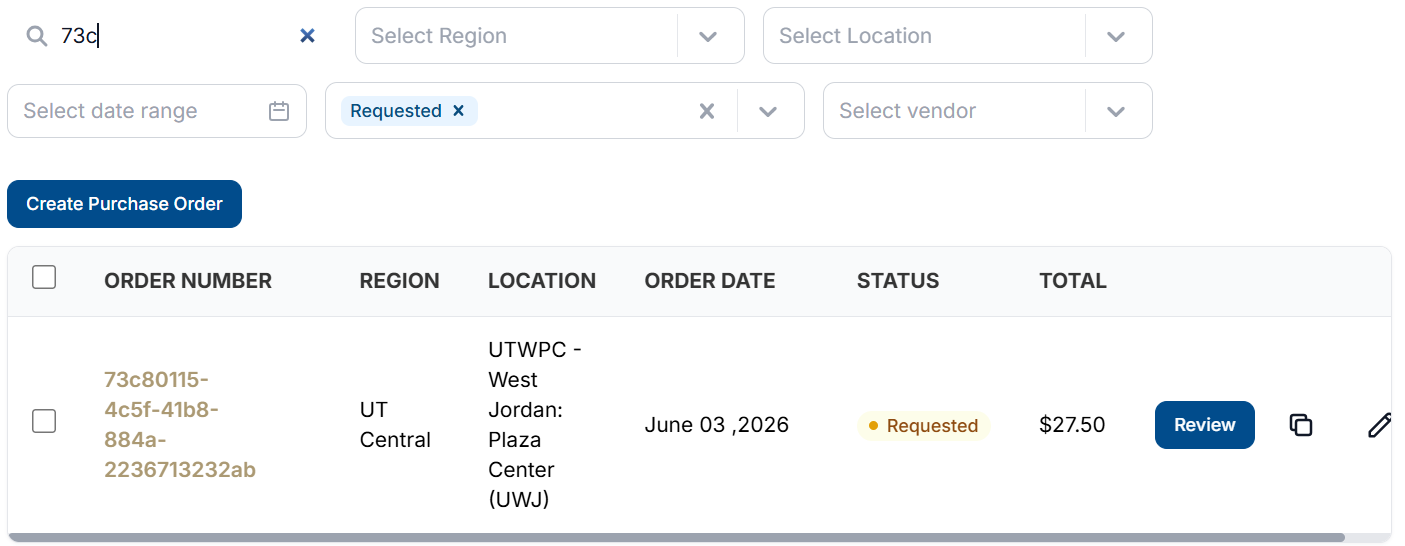
Filtering by Order ID allows you to see Purchase Orders with a matching full or partial purchase order number.
-
Select the Order ID field, and enter a full or partial purchase order number
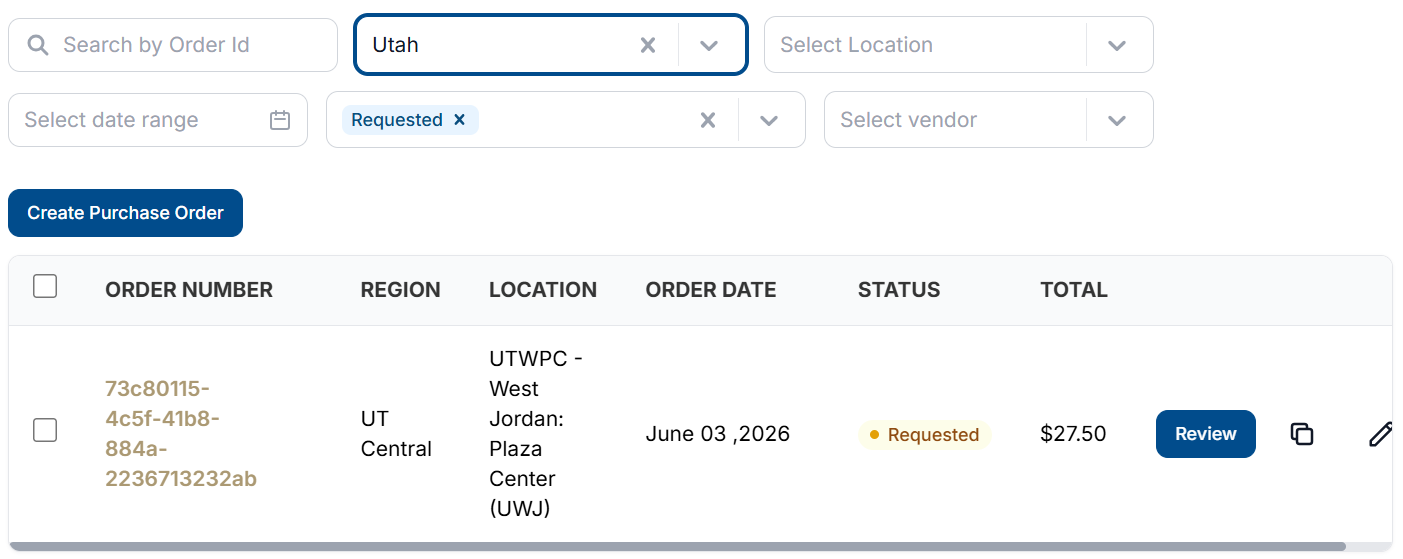
Filtering by Region
Filtering by region allows you to see Purchase Orders from one specific region.
Regions are a way to group together locations. Many locations can belong to one region.
-
Select the Region dropdown, and select the region you would like to view
Filtering by Location
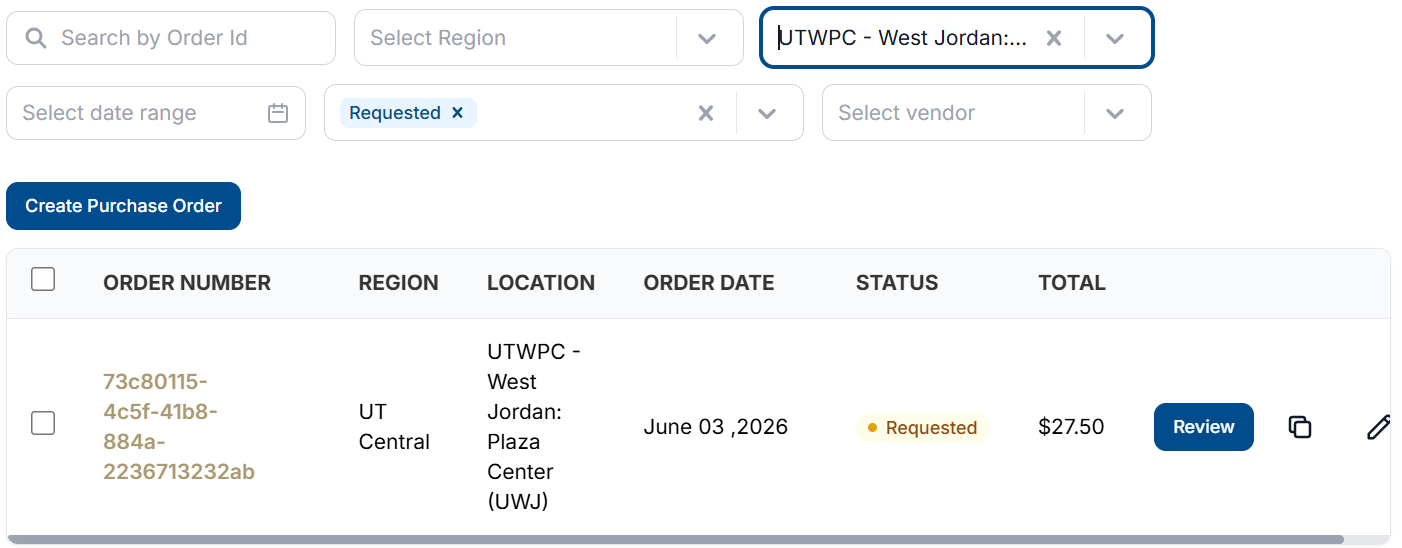
Filtering by Location allows you to see Purchase Orders from one specific Location.
Locations are individual stores or clubs
-
Select the Location dropdown, and then select the location you would like to view
Filtering by Date Range
Filtering by Date Range allows you to only see purchase orders created between two Dates.
-
Select the Date Range field, and select a start and end date in the calendar
The start and end dates are included in purchase orders that are returned.
Filtering by Status
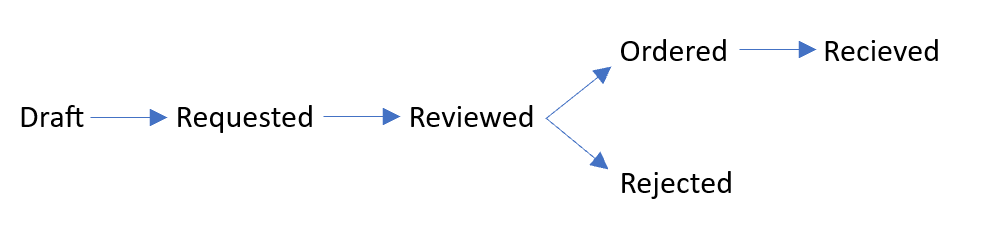
A Purchase Order will flow through a progression of statuses during its lifecycle. Filtering by Status allows you to see purchase orders that are in specific phases of their lifecycle.
-
Select the Status field, and select each of the Statuses you want to view
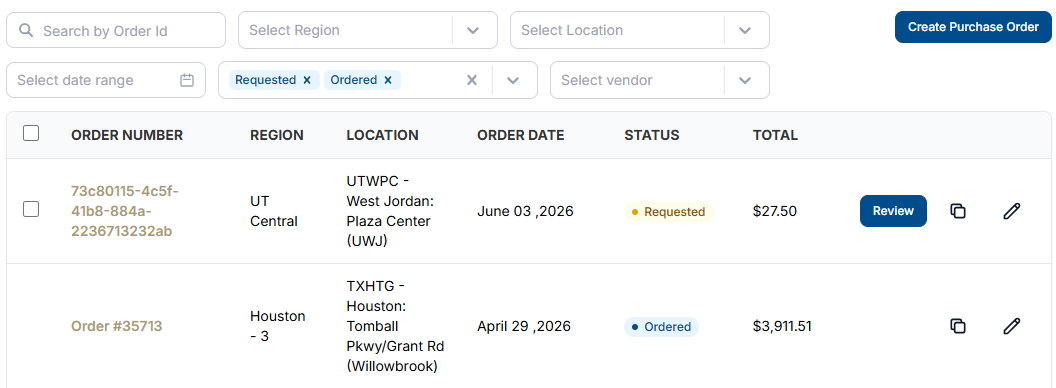
The Requested POs page has the Requested status filter applied by default.
-
To remove a Status filter, select the X next to the status, or select the X next to the status field to clear all statuses.

Filter by Vendor
If an organization utilizes multiple vendors, you can also filter purchase orders by one specific vendor.
This option may not be available if you organization does not have multiple vendors assigned.
-
Select the Select Vendor dropdown and select the vendor you want to view purchase orders for
Requested POs Actions
-
There are three actions that can take place when reviewing a purchase order
-
Reject – Denies approval for the requested purchase order.
-
Submit for Review – Will save any modifications made to the purchase order as a draft
-
Approve – Approves the purchase order and sends it to the vendor(s)
-
-
Once the purchase order is approved, the status will be changed to ordered. If integrated with the vendor, the order number will be automatically updated to match the vendor’s order number for easy referencing between the two systems.

Once the purchase order has been approved, users can no longer make changes to the purchase order in Vego Inventory. Users will need to contact the vendor directly to request that the order is cancelled or modified.
-
If the purchase order is rejected, the status is changed to rejected.

This action is irreversible; however, users will be able to duplicate the order if changes are needed.