
Vego Inventory can easily generate reports on purchase orders for a specific location, or all assigned locations. These reports can be viewed directly on Vego Inventory or exported to a .csv workbook (Excel file). Exporting purchase order reports allows you to easily send and receive data on purchase orders.
Explore the following topics about Purchase Order Reports:
Types of Purchase Order Reports
The type of reports available for purchase orders on Vego Inventory are;
-
Export Orders - Export purchase order line-item details, including; quantities, costs, and statuses.
-
PO Header Export - Export purchase order header data, including; vendor, dates, subtotals, and approval details.
Creating Purchase Order Reports
-
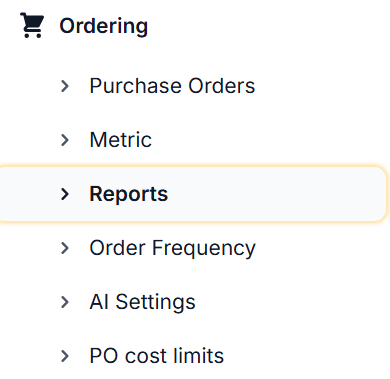
From the Dashboard, navigate to the left-hand side of the menu and select Ordering, then select Reports
Export Orders Report
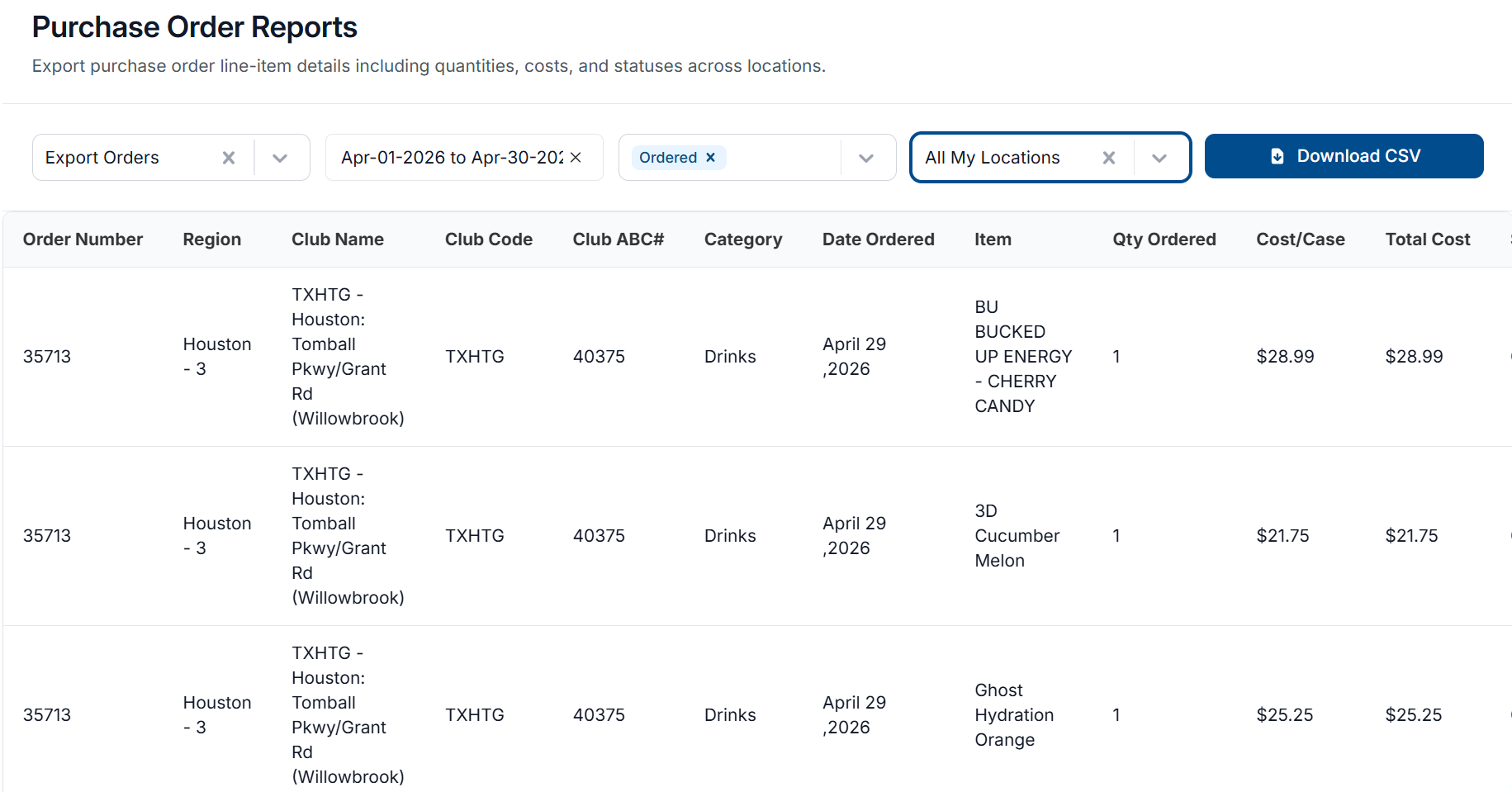
Export Orders reports generate an in-depth analysis about each purchase order that matches the criteria selected. Each individual item on a purchase order is broken down as an individual record, creating a detailed breakdown of purchase orders that match the criteria entered.
-
From the Ordering > Reports page, select the dropdown underneath Purchase Order Reports, then select Export Orders
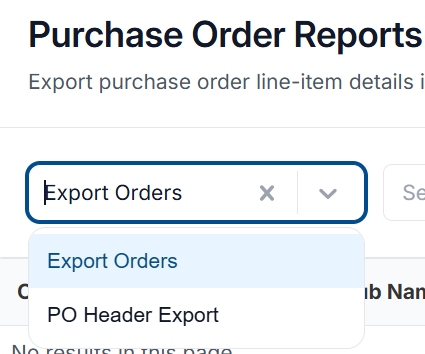
Export Orders is selected by default when opening the Ordering > Reports page
-
Select the Date Range field and select a Start and End Date to filter by.
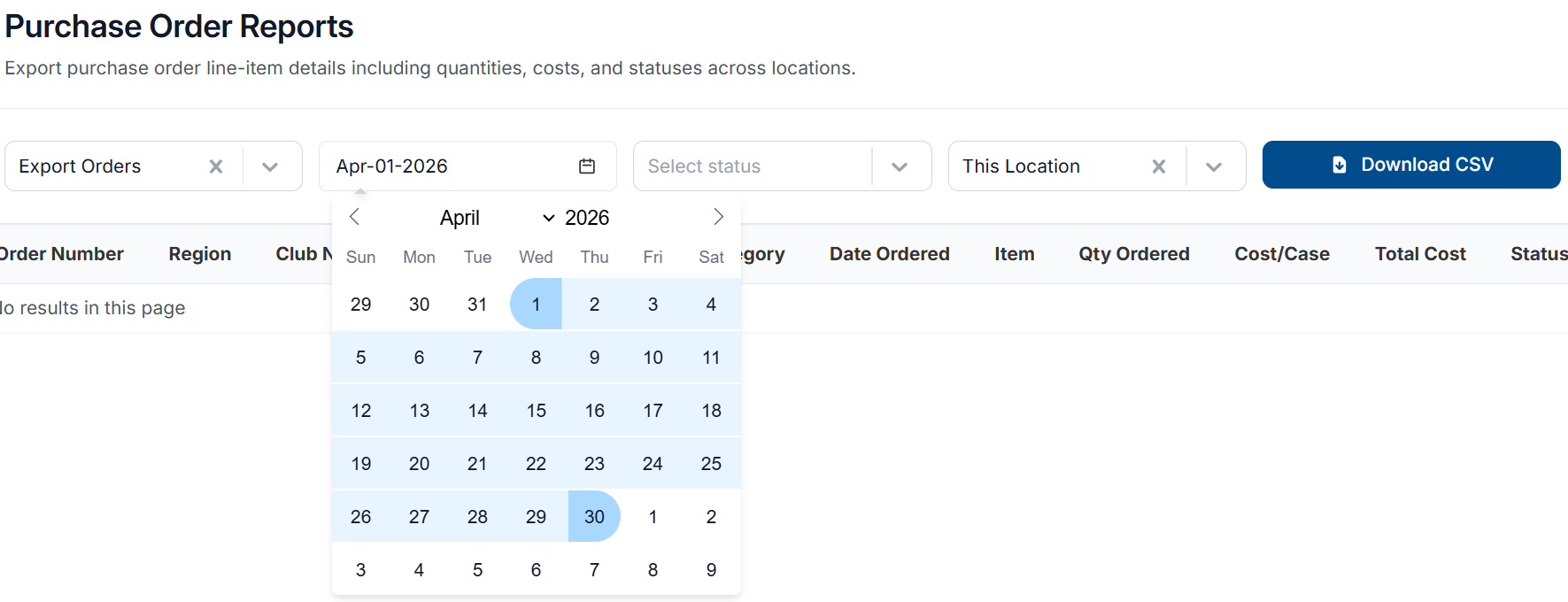
The Date Range field is mandatory, and a report cannot be generated without a selection.
-
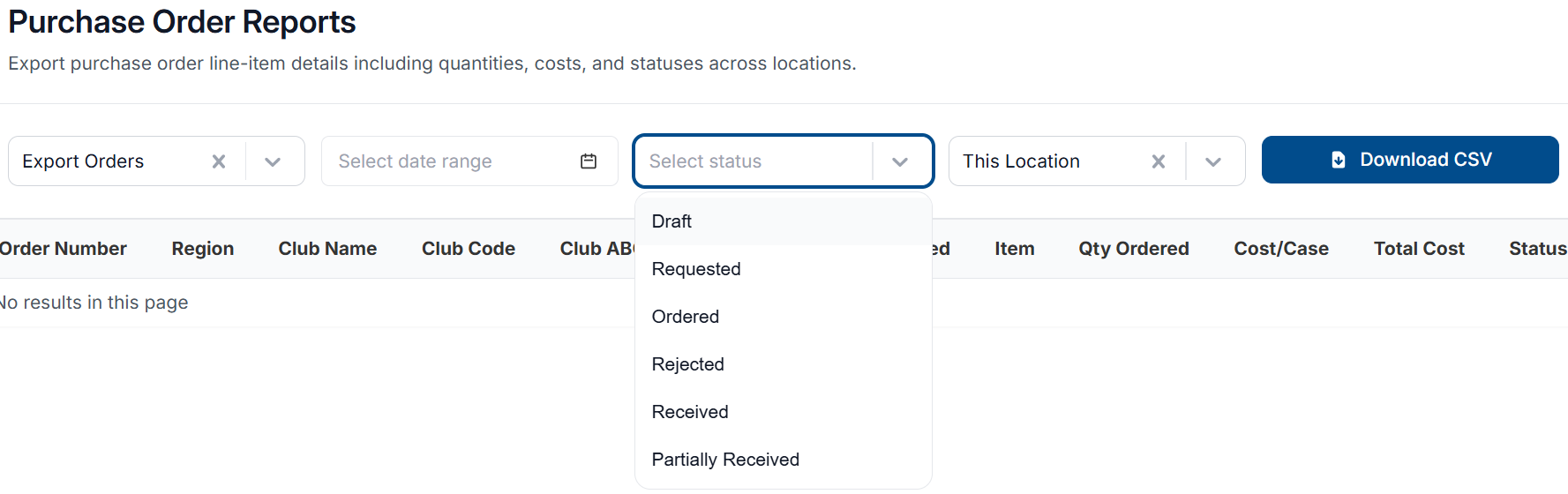
(Optional) Select the Select Status dropdown and select any purchase order statuses you want included
-
Select the Location dropdown and select if you want to include This Location or All My Locations

-
This Location - report is generated only for the currently selected location.
-
All My Locations - report is generated for all locations/regions assigned to user’s account. If a user has four locations assigned to their user account, the report will show data for all four locations.
-
-
The report will generate on the webpage. To export the report to .csv format, click Download CSV
-
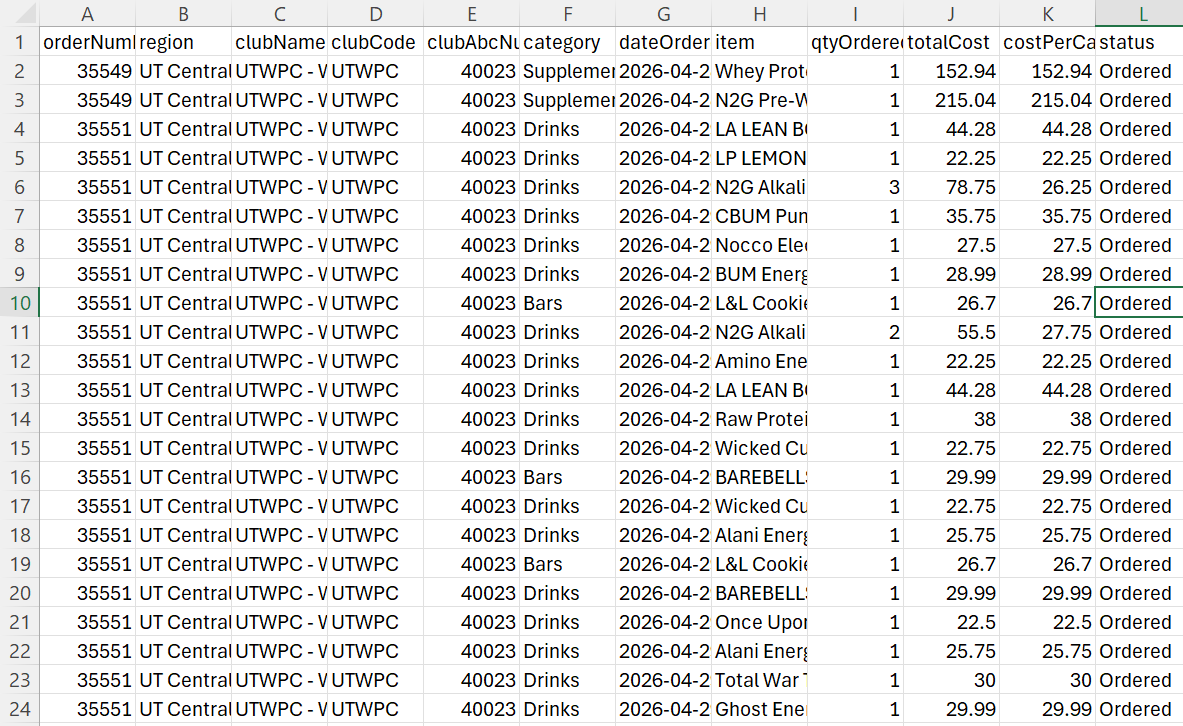
The .csv file will download to your files. You have successfully generated an Export Orders report.
-
Below is a list of each column of the report and what they represent:
|
Column |
Meaning |
|---|---|
|
orderNumber |
Purchase order number associated with the line-item |
|
region |
Region of the club |
|
clubName |
Club name of the location |
|
clubCode |
Organizational code for the location |
|
clubAbcNumber |
ABC Fitness club number for the location |
|
category |
Category of associated line-item |
|
dateOrdered |
Date-Time-Group that the associated line-item was ordered |
|
item |
Name of item from associated purchase order. Each separate item on a purchase order is considered a separate line-item |
|
qtyOrdered |
Quantity (in cases) of associated item that was purchased on the purchase order. |
|
totalCost |
Total cost of associated item for the quantity ordered on purchase order. Calculation: Quantity of Item * Cost Per Case |
|
costPerCase |
Cost of associated item per case ordered. |
|
Status |
Current status of associated purchase order. |
Create PO Header Export
A PO Header Export report generates a report detailing the “Header” data from purchase orders. Rather than providing an in-depth analysis of each purchase order, this report generates a brief overview of all purchase orders that match the criteria entered.
-
Select the dropdown underneath Purchase Orders Reports, and select PO Header Export

-
Select the Date Range field and select a Start and End Date to filter by.
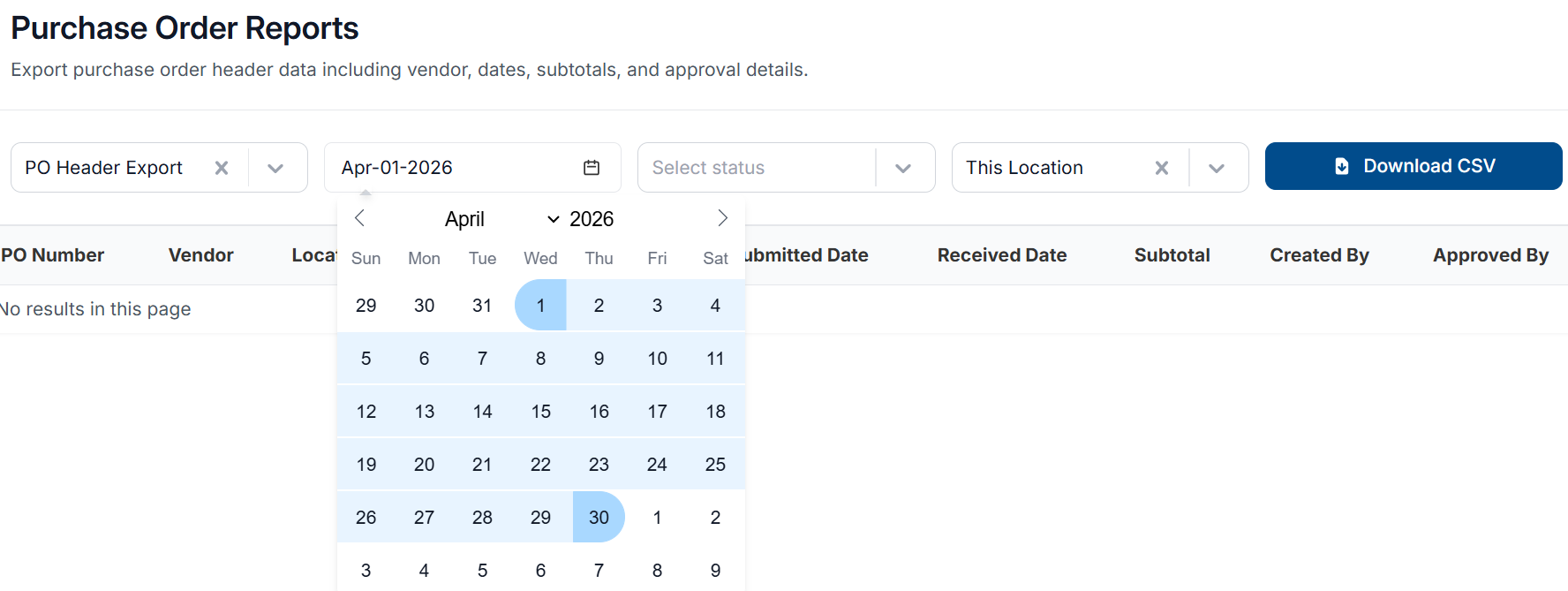
The Date Range field is mandatory, and a report cannot be generated without a selection.
-
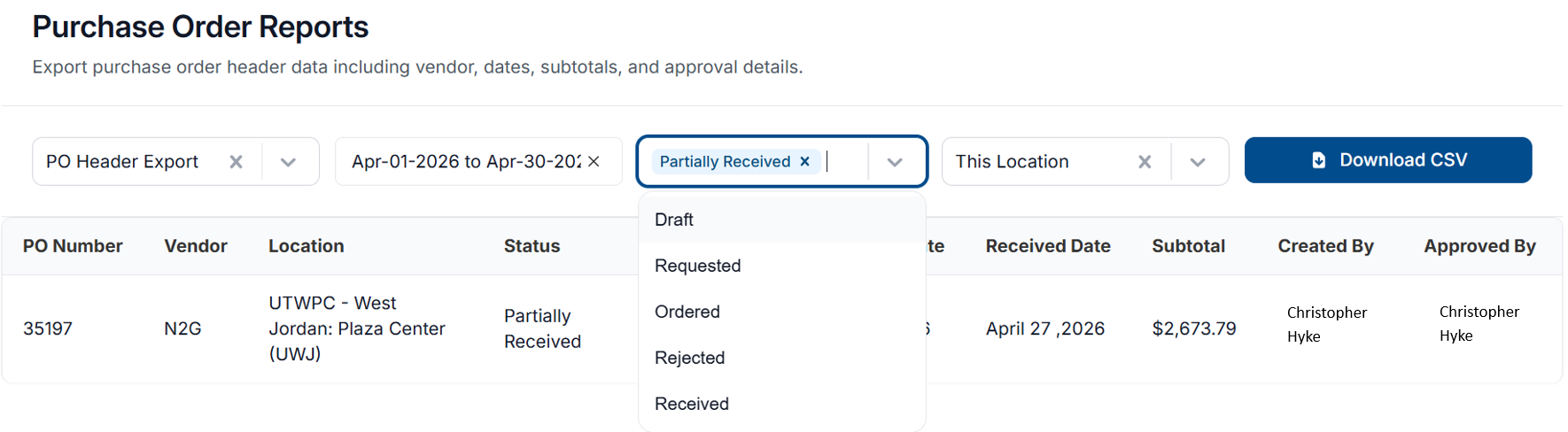
(Optional) Select the Select Status dropdown and select any purchase order statuses you want included
-
Select the Location dropdown and select if you want to include This Location or All My Locations

-
This Location - report is generated only for the currently selected location.
-
All My Locations - report is generated for all locations/regions assigned to user’s account. If a user has four locations assigned to their user account, the report will show data for all four locations.
-
-
The report will generate on the webpage. To export the report to .csv format, click Download CSV
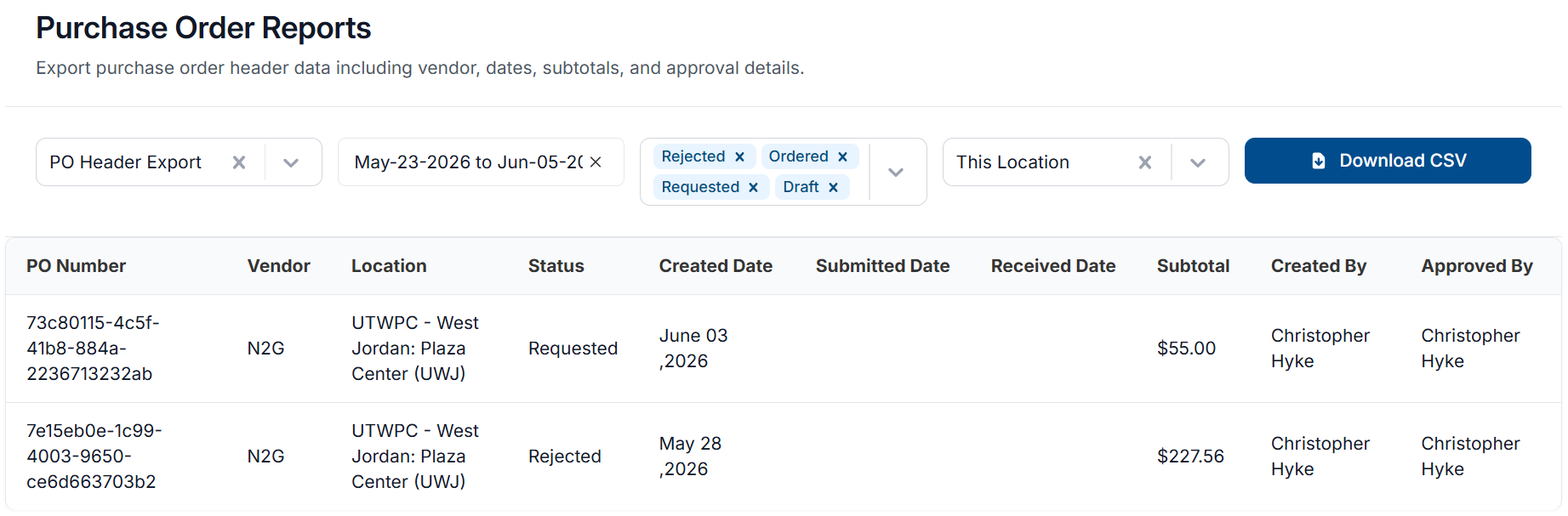
-
The .csv file will download to your files. You have successfully exported a Shrinkage Report.

-
Below is a list of each column of the report and what they represent:
|
Column |
Meaning |
|---|---|
|
poNumber |
Purchase order number |
|
vendor |
Vendor for associated purchase order |
|
location |
Location that the purchase order was placed from |
|
status |
Current status of the purchase order |
|
createdDate |
Date that the purchase order was created |
|
submittedDate |
Date that the purchase order was submitted to vendor |
|
receivedDate |
Date that the purchase order was received by the location |
|
subTotal |
Total cost of purchase order |
|
createdBy |
User who created the purchase order |
|
approvedBy |
User who reviewed and approved/rejected the purchase order. Will show as the user who created purchase order until the order has been approved/rejected. |