
Stock
Viewing Stock
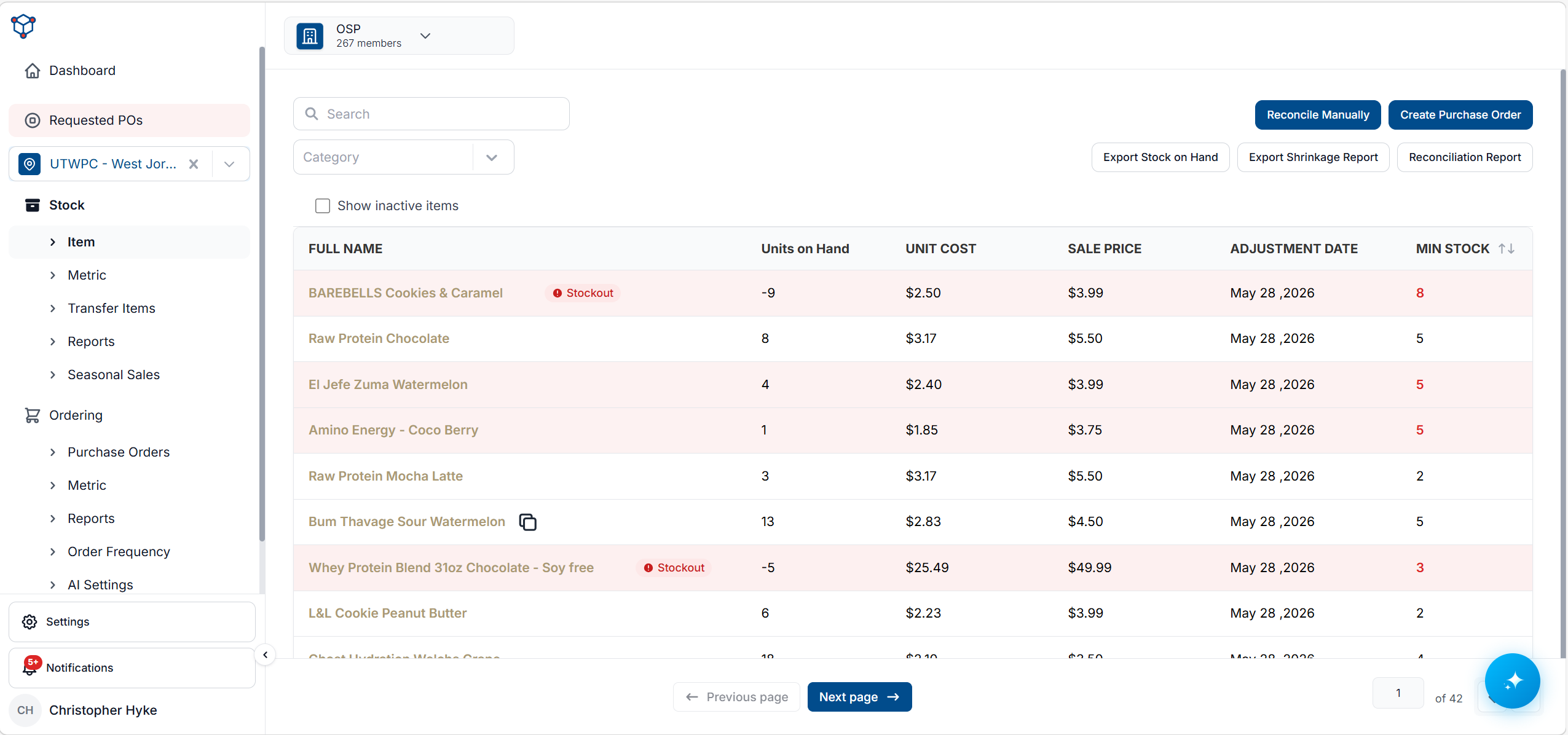
In Huzzard Inventory, users have the ability to view the current stock levels within the selected location. To view stock:
If assigned to multiple locations, select location to view the stock of from the left hand menu

Click “Stock” in the left hand menu

Once opened, the stock of the selected location will display on the right

To find a specific item’s stock use the “Search” feature on the top left
5. To view the history of stock changes of an item, click on that item, at which point you will see a screen like this one:

This is the stock ledger. It displays an itemized list of all changes made to the item’s stock.
Note that the stock ledger shows the amount the stock was adjusted by, not the stock after each adjustment was made.
Manually Reconciling Stock
Stock reconciliation involves adjusting stock levels to accurately reflect the current inventory counts at a specific location.
To reconcile stock via the wireless inventory data collection device, please follow the directions outlined on the HSTA-209 Reconciliation page
Manual reconciliation allows the user to override the current stock total with a new value
Access Huzzard Inventory - https://Inventory.Huzzard.com
Sign in with user credentials
if assigned to multiple locations, ensure the correct location is selected in the left-hand menu

In the left-hand menu, select Stock

Select Reconcile Stock from the buttons on the top of the page

Select the Reconcile Manually button

Select the Add Item button

Select the dropdown in the Item column and search for/select the item you are looking to reconcile

In the Current Count (Units) column, select the total amount of the selected item you want to reconcile to

This will override the current stock total. If 48 is entered into the Current Count field, the new total will be 48. The old value is discarded
To add additional items to the reconciliation, click the plus icon on the right side of the item
To proceed with the reconciliation, press the Save button
After an item has been reconciled, a new record will display showing the stock quantity that was reconciled, the reason for adjustment, any adjustment notes (if set during reconciliation), the user who reconciled the stock, and when the item was last reconciled
Reporting
Huzzard Inventory can automatically generate stock on hand and shrinkage reports. These reports are an easy and effective way to better understand your stock levels and how they are changing. After creating a report, it will be downloaded to your device as an .xlsx workbook (Excel file). This makes it very easy to send and receive reports
To Create a Report:
From the Dashboard, navigate to the left hand side of the menu and select “Stock”

Create a Stock on Hand Report
Stock on Hand Reports contain the stock levels and information regarding all items currently in stock at the selected location(s). This includes things like Unit Cost, Unit Price, SKU, UPC, and more.
To Create a Stock on Hand report:
Click on “Export Stock on Hand”

In the pop up menu, select which categories will be included in the report, if you would like to see items with a negative stock level, and if the report will include all your locations, or just this one.

Click “Export”
The .xlsx file will download to your files. You have successfully exported a Stock on Hand report

Here is a list of each column of the report and what they represent:
Column | Meaning |
|---|---|
region | Region of the club for the item |
locationName | Name of the club for that item |
locationCode | Code for the club for that item |
locationABCNumber | ABC number for the club for that item |
categoryName | Category for that item |
itemName | Name of the item |
itemUPC | UPC of the item |
itemSKU | SKU of the item |
salePrice | Sale Price of the item |
unitCost | Cost per item for that item |
quantityOnHand | Quantity on hand at the given club for their item |
totalCost | UnitCost multiplied of quantityOnHand. Represents the cost for all currently on hand stock for that item. |
Create a Shrinkage Report
Shrinkage reports tell you where you lost stock, and how. If you sell a perishable item, and it expires before you sell it, you must remove that item from your stock. Or perhaps an item is stolen, and it must be removed from your stock. Huzzard Inventory Shrinkage Reports collect and combine all events like this and create a report, so you can see how and why you’re losing stock.
Click “Export Shrinkage Report”

b. Select whether this report will show results form only this location, or all of your locations

c. Click “Export”
d. The .xlsx file will download to your files. You have successfully exported a Shrinkage Report.

Here is a list of each column of the report and what they represent:
Column | Meaning |
|---|---|
region | Region of the club for that reduction for the item |
locationName | Name of the club for that reduction for that item |
locationClubCode | Code for the club for that reduction for that item |
date | Date that the reduction in quantity was recorded |
itemCategory | Category for that item |
itemName | Name of the item |
itemSKU | SKU of the item |
quantity | Quantity on hand at the given club for their item after the given reduction |
unitCost | Cost per item for that item |
reconciliationReason | Reason for adjustment chosen for the reduction |
discreprancyNotes | Notes provided, if any, for the reduction |
Create a Reconciliation Report
Huzzard Inventory Reconciliation Reports collect and combine all changes made to stock, other than through sales. This can allow you to track the changes made to stock.
Click “Reconciliation Report”

In the pop-up menu, select what date range will be included in the report and if the report will include all your locations, or just this one.

Click “Export”
The .xlsx file will download to your files. You have successfully exported a Shrinkage Report.

Example of a Reconciliation Report
Here is a list of each column of the report and what they represent:
Column | Meaning |
|---|---|
adjustmentDate | Date that the given item adjustment occurred |
itemName | Name of the item |
itemSKU | SKU of the item |
itemCategoryName | Category of the item |
locationName | The region for the club where the adjustment occurred |
clubNumber | The club where the adjustment occurred |
itemCost | The cost per unit of the item |
adjustmentQuantity | The change in quantity made to the item’s stock during this adjustment a. Positive means the amount was added to the total b. negative means the amount was removed from the total |
employee | The name of the employee that made the adjustment |
adjustmentReason | The reason selected for the adjustment |