
The Stock page provides a comprehensive overview of your inventory, allowing you to monitor stock levels, track inventory movements, and maintain accurate records. Users can view current quantities on hand, identify items that are out of stock or running low, review historical stock transactions, and reconcile inventory counts to correct discrepancies between physical and recorded stock levels. This helps ensure inventory accuracy, improve stock visibility, and support informed purchasing and replenishment decisions.
Explore the following topics about Stock Items:
View a Location’s Stock
In Vego Inventory, users have the ability to view the current stock levels within the selected location. To view stock:
-
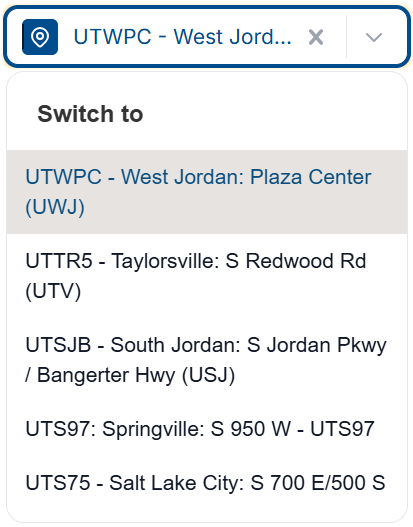
If assigned to multiple locations, select the location to view the stock from on the left-hand menu
-
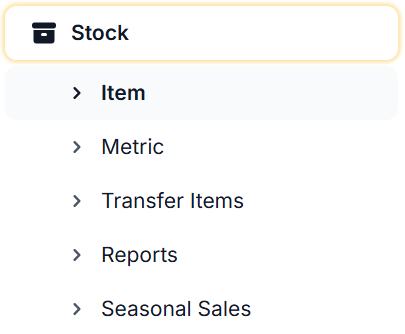
Click Stock in the left-hand menu, it will default to the Item page
-
Once opened, the stock of the selected location will display on the right
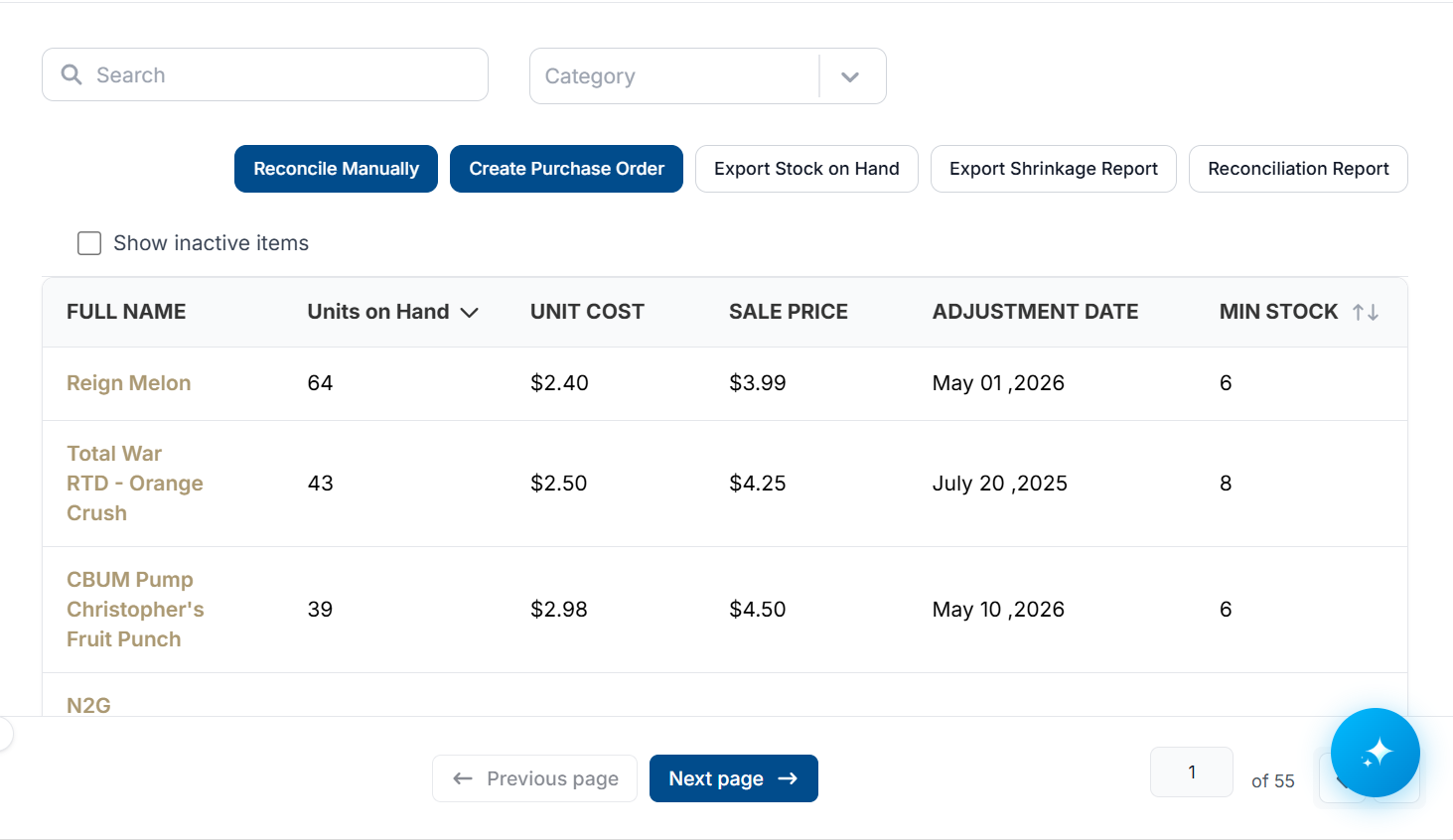
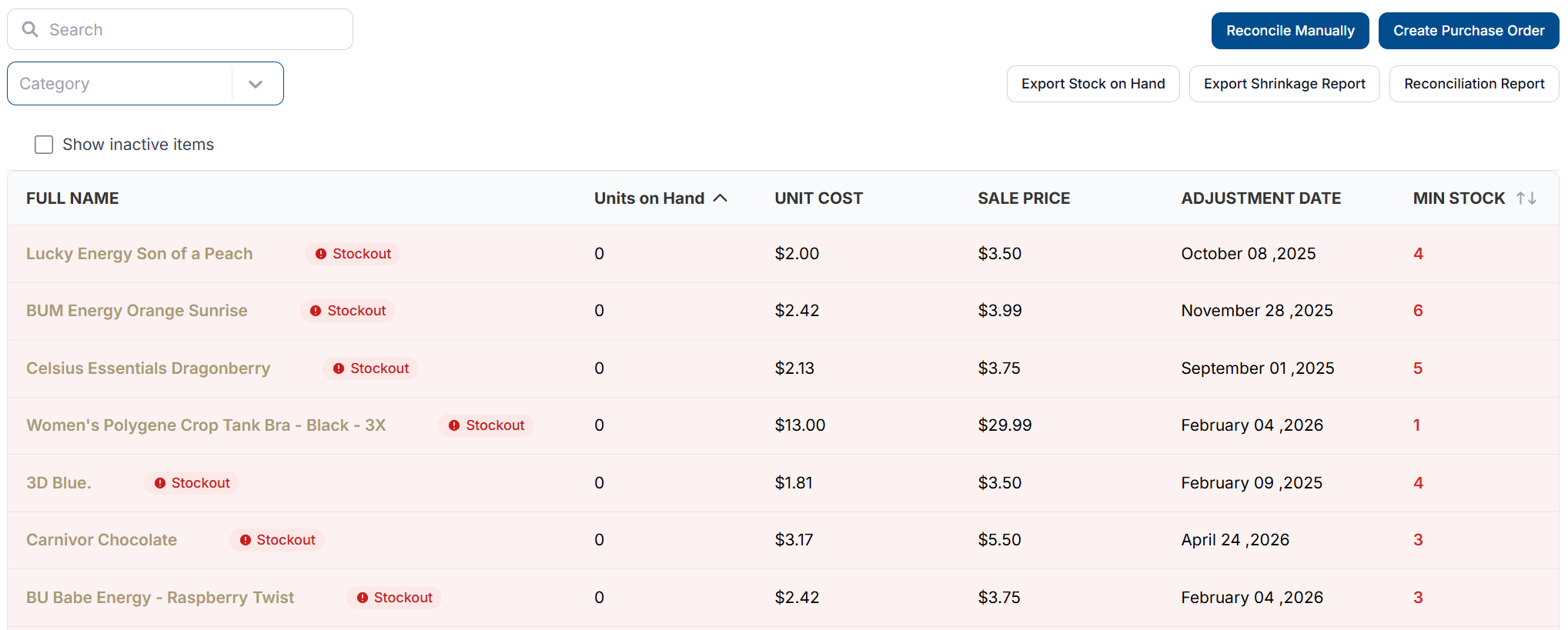
Items that are below the minimum stock level will be highlighted red.
If the item’s quantity is less than or equal to zero, it will appear as a Stockout item
-
See below for a breakdown of each column:
|
Column |
Description |
|---|---|
|
Full Name |
Full product name for the item |
|
Units on Hand |
Current quantity of item in stock at the location |
|
Unit Cost |
Cost per unit of the item |
|
Sale Price |
Price that the item is sold for |
|
Adjustment Date |
Date of last adjustment of stock (sales, reconciliation, shrinkage) |
|
Min Stock |
Minimum quantity of product that should be in stock. Items below this value will be highlighted red |
Filtering Stock
-
To find a specific item’s stock, use the Search feature on the top left

-
Search - enter an item name or SKU to search for specific items
-
Category - filter data to show only items belonging to a specific category by selecting a category from the dropdown menu
-
-
To show items that are currently marked as Inactive, select the Show Inactive Items checkbox

Sorting Stock
Users can sort stock items by any column to quickly locate and analyze inventory information.
By default, the data is sorted by Full Name alphabetically.
-
Clicking a column header sorts the records in ascending order, and a ^ will appear next to the column header
-
Clicking the same header again switches to descending order, and a ⌄ will appear next to the column header
View Stock Item Dashboard
Vego Inventory
-
From the Stock > Item page, select an item to view the item’s dashboard

-
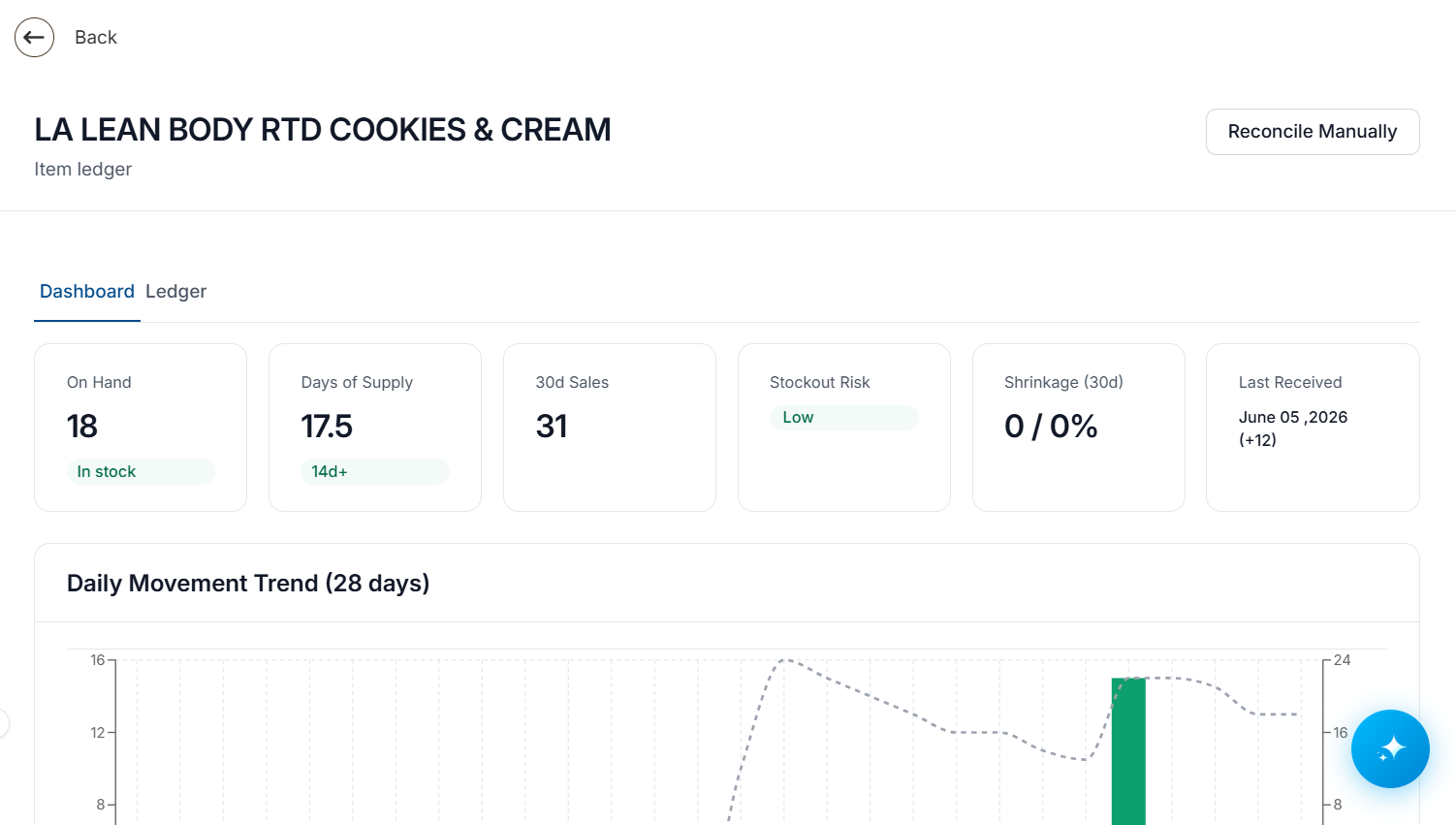
A new page will open, displaying the item’s dashboard
-
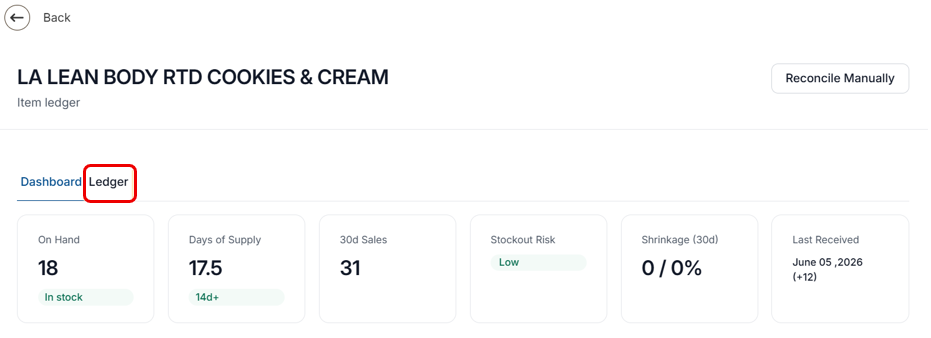
An item’s dashboard page shows a variety of metrics about the item, including;
-
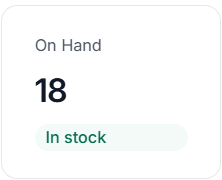
On Hand - this card displays the current quantity in the location’s stock
-
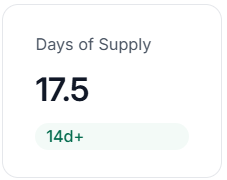
Days of Supply - this card shows a predicted number of days that the current stock level will last, based on historical sales data
-
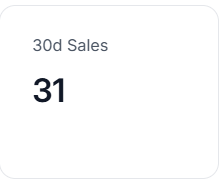
30d Sales - this card displays the quantity of the item that has been sold in the last 30 days
-
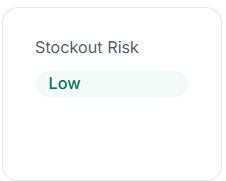
Stockout Risk - this card displays the current stockout risk, based on current stock and historical sales data
-
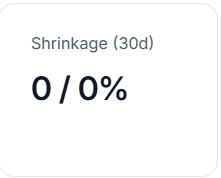
Shrinkage (30d) - this card displays the quantity and percentage of stock that has been lost due to shrinkage in the last 30 days
-
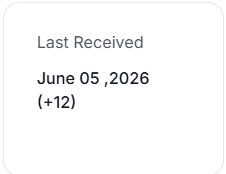
Last Received - this card displays when the last order that included the selected item was received
-
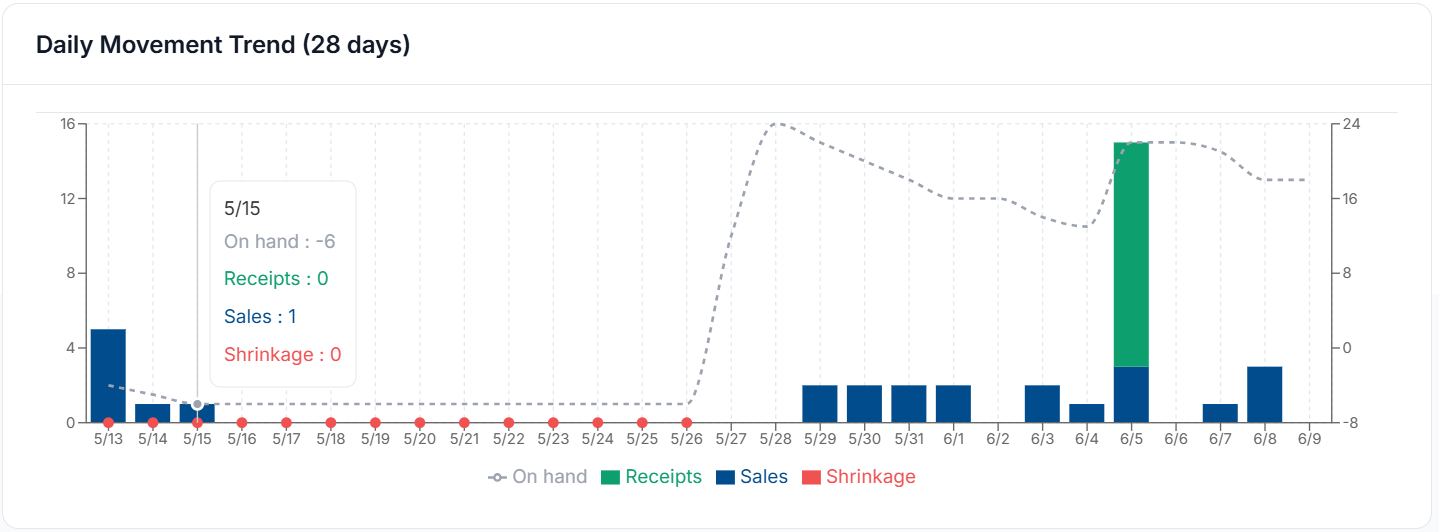
Daily Movement Trend (28 Days) - this graph displays trends on the sale, receipt and shrinkage of the selected item’s stock in the last 28 days
-
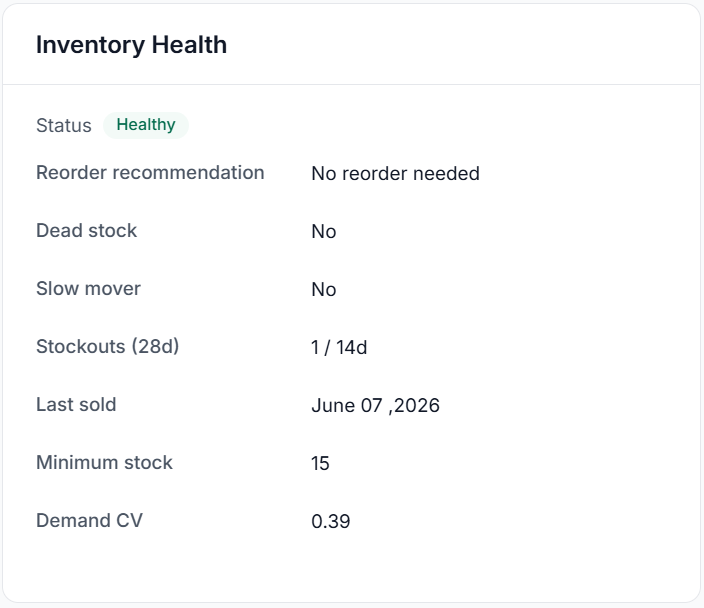
Inventory Health - This card displays information on the current health of the item’s stock, including; reorder recommendation, dead stock, slow mover, stockouts in the last 28 days, and last sold date.
-
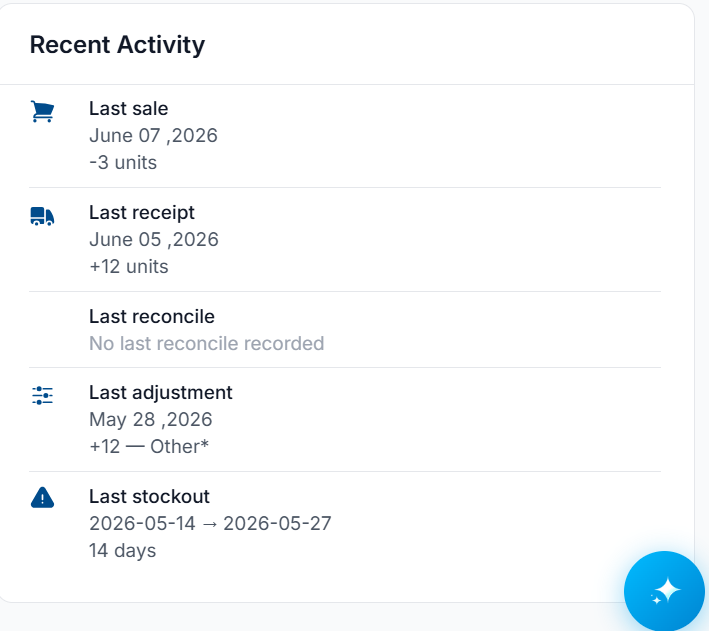
Recent Activity - this card shows the last date of activity for sales, receiving, reconciliation, adjustment, and stockout.
-
View Stock Item Ledger
-
From the Stock > Item page, select an item to view the item’s dashboard
-
A new page will open, displaying the item’s dashboard, select the Ledger tab to the right of Dashboard
-
The dashboard will switch to the Stock Ledger view, similar to the one below;
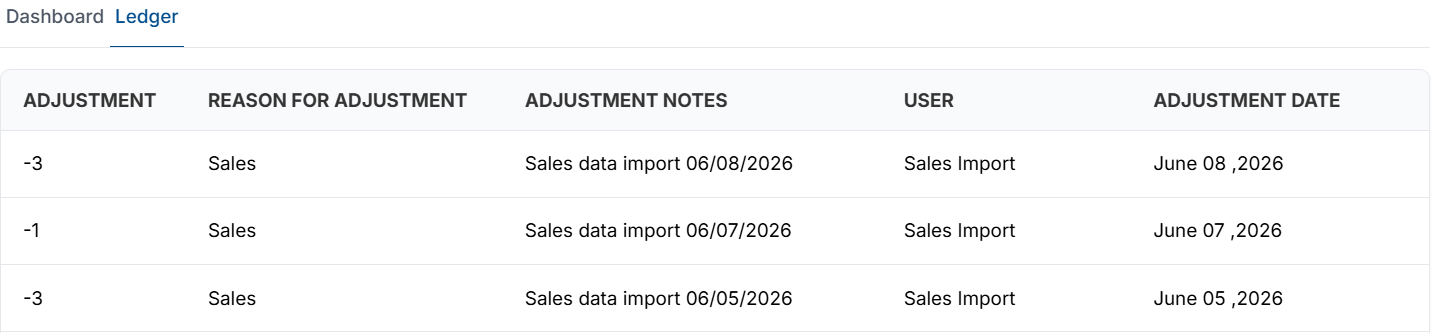
The stock ledger shows the amount the stock was adjusted by; it does not show the quantity after the adjustment.
-
See below for a breakdown each column:
|
Column |
Description |
|---|---|
|
Adjustment |
Amount the stock was adjusted by (negative shows reduction, positive shows receiving) |
|
Reason for Adjustment |
Reason for the stock adjustment (Sales, reconciliation, shrinkage, receiving) |
|
Adjustment Notes |
Automated or manual notes regarding the adjustment. |
|
User |
User or automated system that made the stock adjustment. |
|
Adjustment Date |
Date that the adjustment occurred. |
Stockout Items
Vego Inventory helps locations identify and determine an estimated sales missed by items being out of stock. If an item’s quantity is less than or equal to zero, Vego Inventory flags the item, keeps track of the start and end of the stock being out, and estimates the number of units that would have been sold during the stockout period.
To view stockout items;
-
View a locations stock by following the steps in View Stock
-
Stockout items will appear with the red Stockout icon
-
To view the history of the stockout items, select the red Stockout icon
-
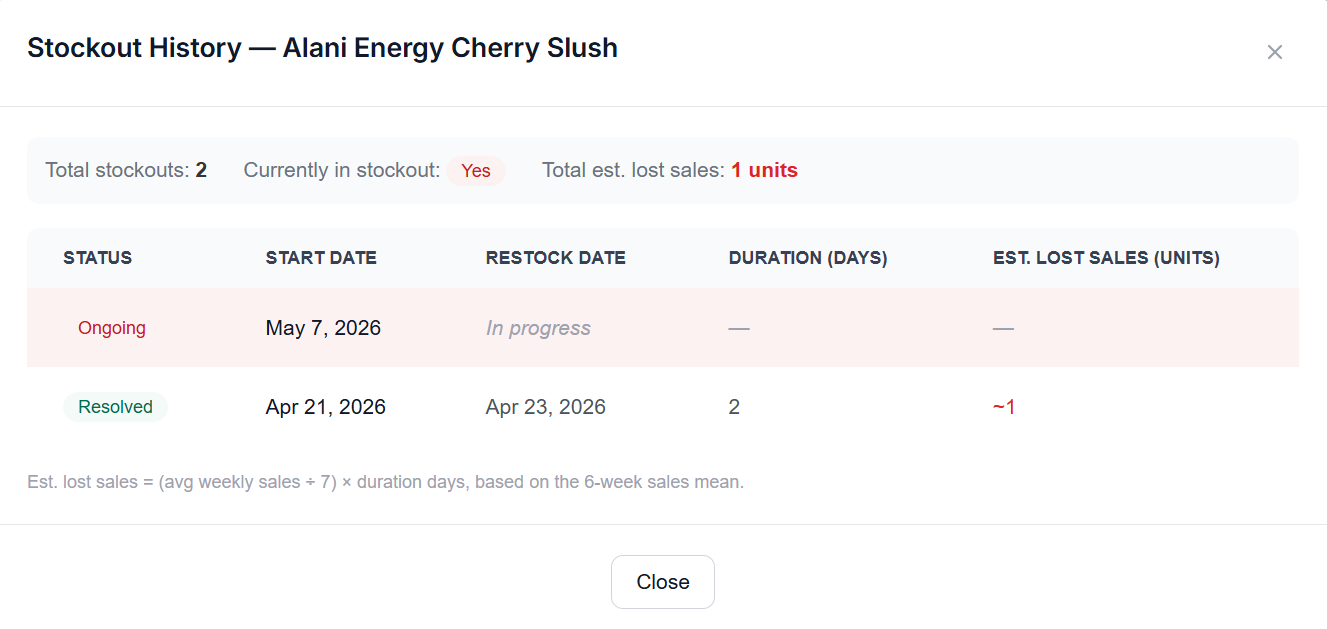
Vego Inventory will display the Stockout History of the item, including previous stockouts
-
Below is a list of each column of the Stockout History and what they represent:
|
Column: |
Meaning: |
|---|---|
|
Total Stockouts |
The total number of times this item has entered a stockout at the current location |
|
Currently in stockout |
Indicates if the item is currently in stockout, or if the stockout has been resolved by receiving new stock |
|
Total est. lost sales |
The total estimated lost sales caused by all stockouts for the item. |
|
Status |
Current status of the stockout based on inventory levels.
|
|
Start Date |
Date that the stock quantity reached 0 |
|
Restock Date |
Date that the stock returned to a quantity above 0 |
|
Duration (Days) |
Total number of days that item remained out of stock |
|
Est. Lost Sales (Units) |
Estimate of the number of units that would have been sold during stockout Est. lost sales = (avg weekly sales ÷ 7) × duration of days, based on the 6-week sales mean. |
Manually Reconciling Stock
Stock reconciliation involves adjusting stock levels to accurately reflect the current inventory counts at a specific location.
To reconcile stock via the wireless inventory data collection device, please follow the directions outlined on the HSTA-209 Reconciliation page
Manual reconciliation allows the user to override the current stock total with a new value
-
Access Vego Inventory - https://Inventory.Huzzard.com
-
Sign in with user credentials
-
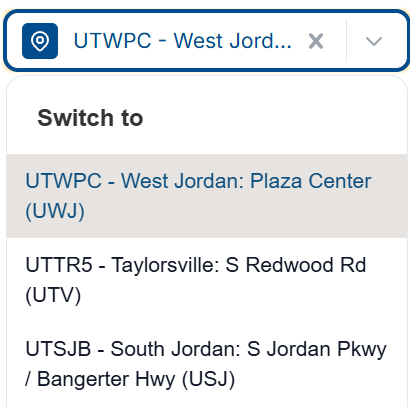
If assigned to multiple locations, ensure the correct location is selected in the left-hand menu
-
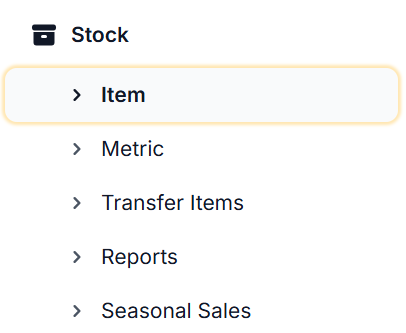
In the left-hand menu, select Stock, then select Item
-
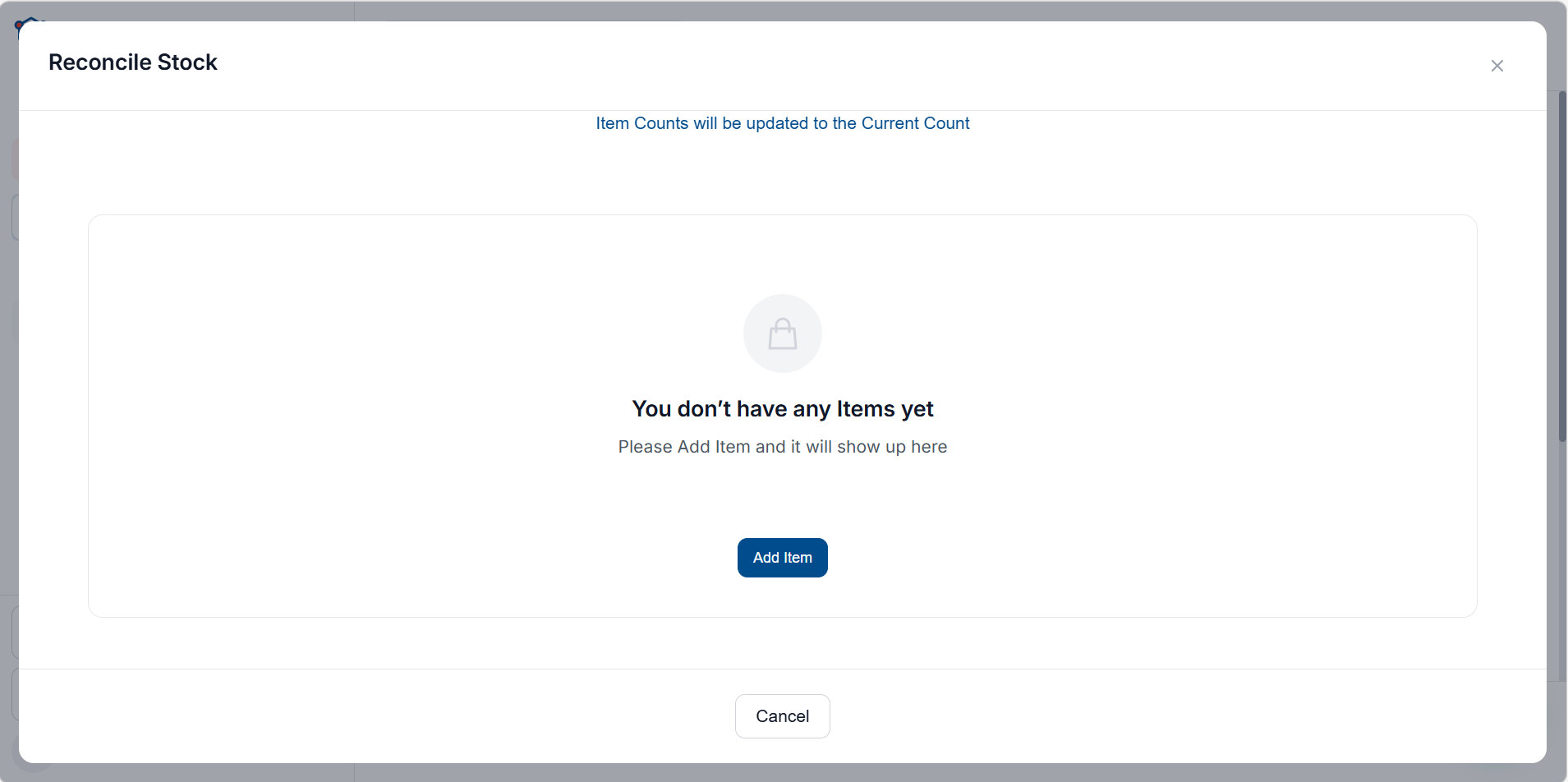
Select Reconcile Manually from the buttons at the top of the page

-
Select the Add Item button
-
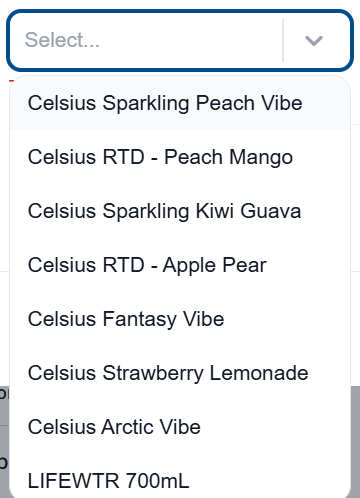
Select the dropdown in the Item column and search for/select the item you are looking to reconcile
-
In the Current Count (Units) column, select the total amount of the selected item you want to reconcile to

This will override the current stock total. If 12 is entered into the Current Count field, the new total will be 12. The old value, displayed as Previous Count (UNITS) will be overwritten.
-
Select the dropdown in the Reason for Adjustment column, and select the reason for the adjustment
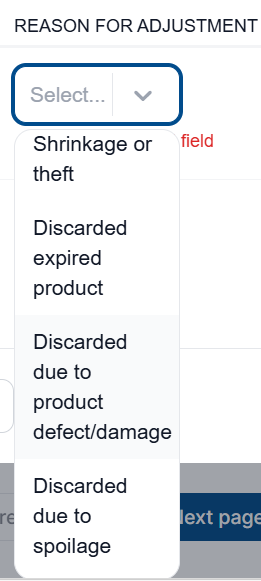
Reasons For Adjustment can be created and managed by Organization Admins in the Reason for Discrepancy organizational settings.
-
(Optional) Add a note for the item’s reconciliation in the Adjustment Notes column.

-
To add additional items to the reconciliation, click the plus icon on the right side of the item

-
To proceed with the reconciliation, press the Save button
-
After an item has been reconciled, a new record in the stock ledger will display, showing the stock quantity that was reconciled, the reason for adjustment, any adjustment notes (if set during reconciliation), the user who reconciled the stock, and when the item was last reconciled
