
Vego Inventory allows users to transfer stock between locations. Transferring items allows for locations within the organization to support each other by transferring available inventory to locations that are low on stock.
Explore the following topics about Transferring Items:
Initiate Item Transfer
-
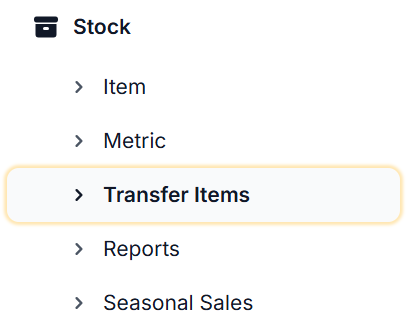
From the Dashboard, navigate to the left-hand side of the menu and select Stock, then select Transfer Items
-
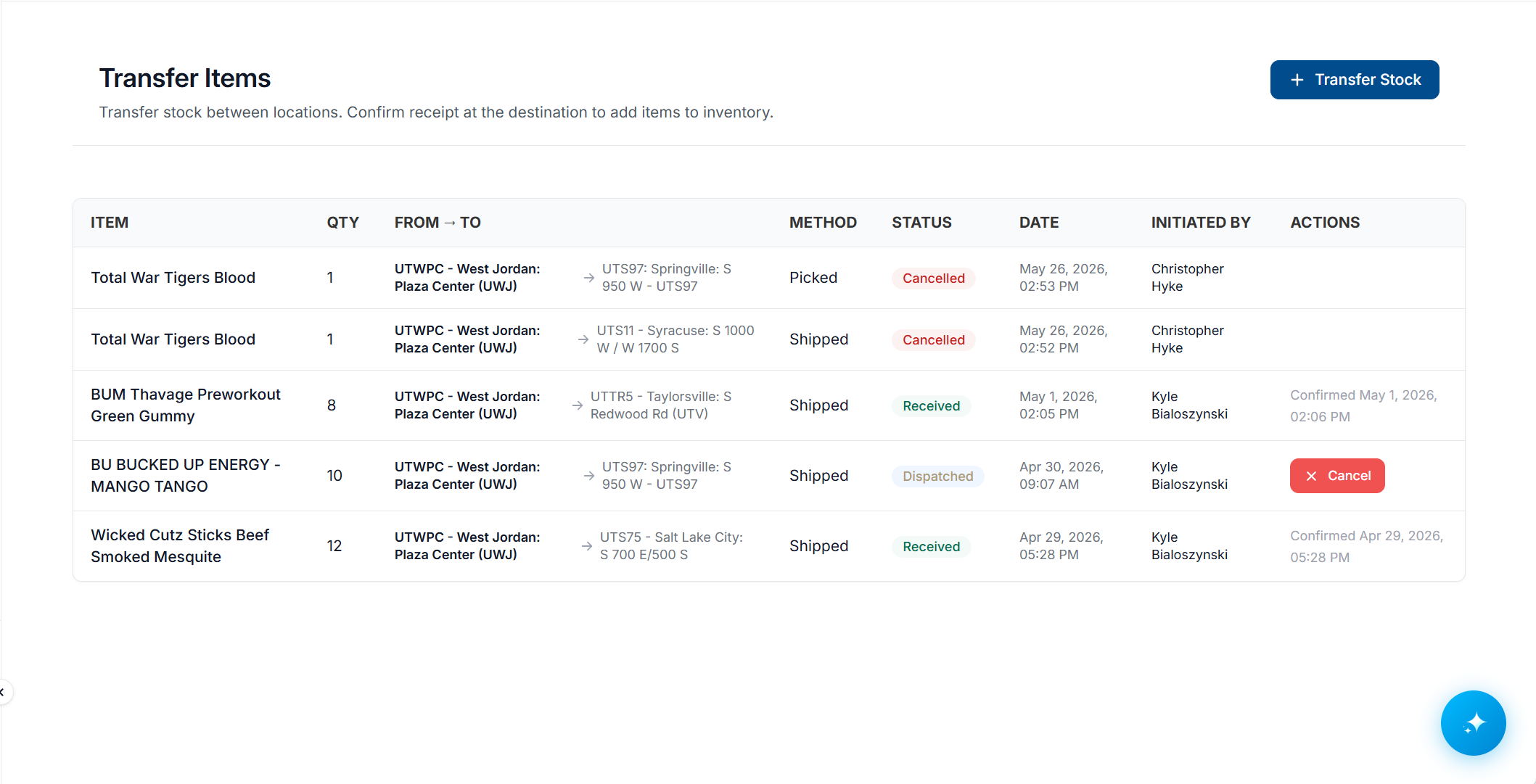
A page similar to the one below will display;
-
To initiate a transfer, select Transfer Stock

-
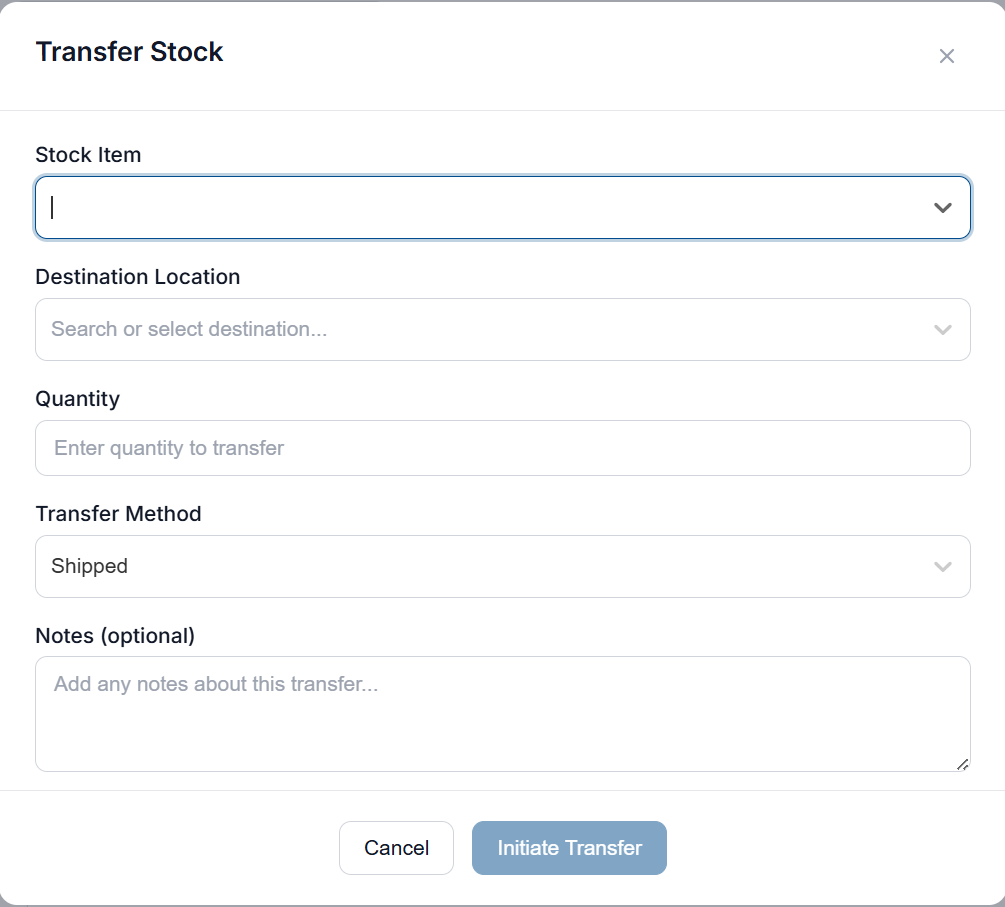
The transfer stock utility will display
-
Complete the following information about the item transfer
-
Stock Item - item to be transferred to destination location
-
Destination Location - Location for the item to be transferred to
-
Quantity - Quantity of item to transfer from stock to destination location (cannot be greater than current on-hand quantity)
-
Transfer Method - how the stock will be transferred, select one of the following;
-
Shipped - Item will be shipped to the location through a mail or package service
-
Picked - an employee is picking item from stock to transfer to destination location
-
-
Notes (Optional) - additional information about the item transfer
-
-
Select Initiate Transfer
-
A new record for the item entry will be created.

The item Status will remain dispatched or shipped until the destination location receives the item through Vego Inventory.
To cancel the item transfer, select Cancel from the Transfer Items page
Receive Item Transfer
-
From the Dashboard, navigate to the left-hand side of the menu and select Stock, then select Transfer Items
-
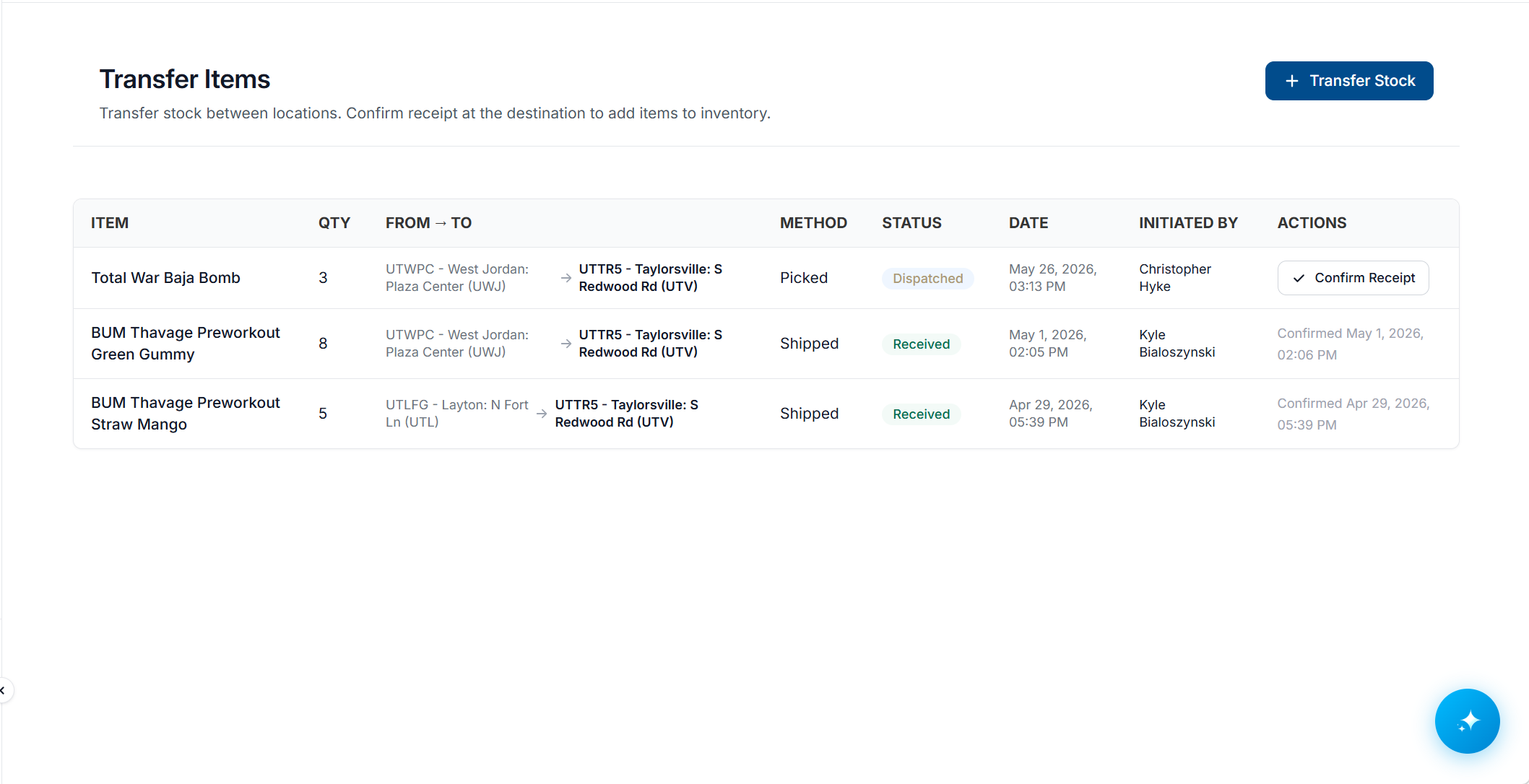
A page similar to the one below will display;
-
Verify the information for the item transfer, then select Confirm Receipt

-
The item transfer will be completed, and the quantity will be added to your stock