
What is a Reason for Discrepancy?
In Vego Inventory, a reason for discrepancy is essentially the reason why a stock adjustment was made. If 12 bottles of protein shakes expired at your location, the reason for the discrepancy could be something like “Expiration” or “Spoilage”. If a T-shirt was stolen from your location, an appropriate reason for the discrepancy would be “Theft” or “Goods Stolen”.
Adding a Reason for Discrepancy
If a separate reason for changing stock is needed, new Reasons for Discrepancy can be added to what users can select.
-
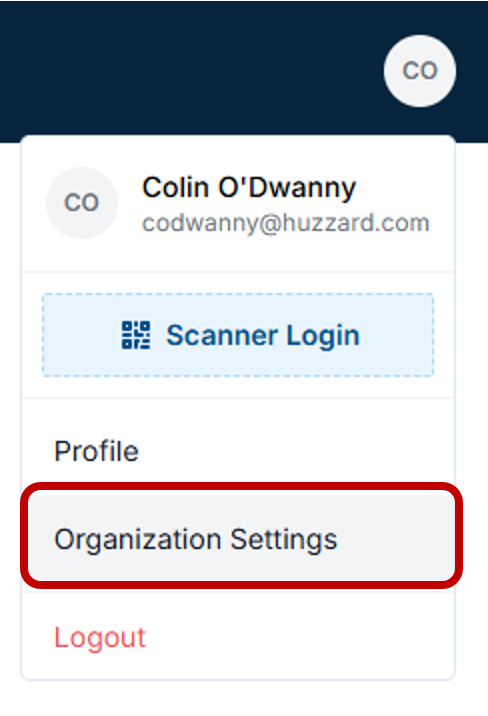
Navigate to the top right-hand corner of Vego Inventory, and click on the small circle with your initials

-
Click on “Organization Settings”
-
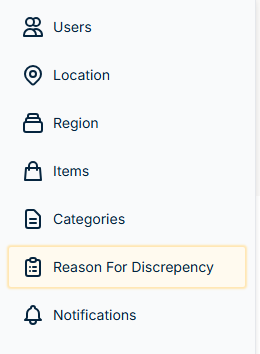
Click on “Reason for Discrepancy”
-
Click on “Add Reason” on the top right
-
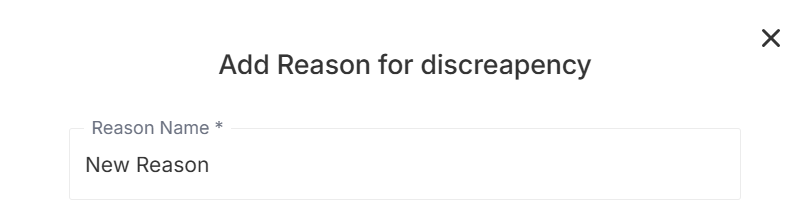
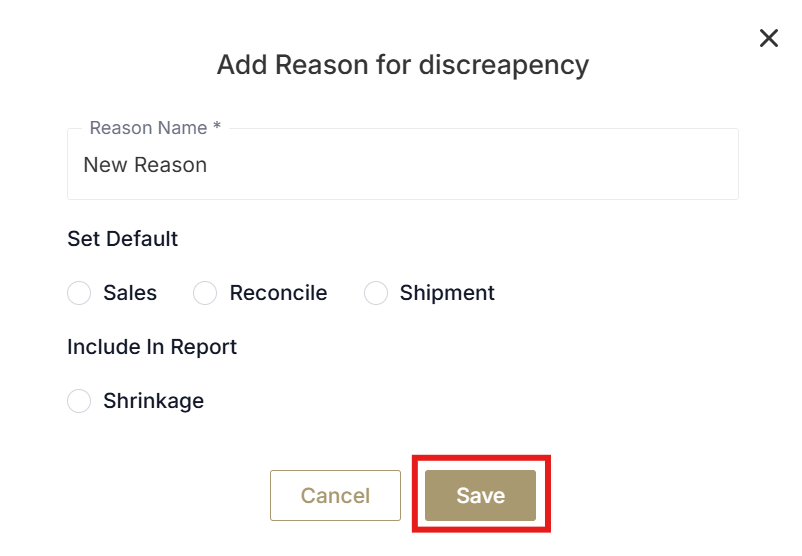
Enter the “Reason Name”
-
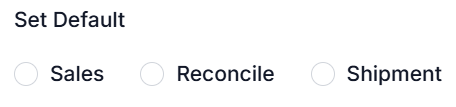
If the new reason is meant to be the default for a stock change method, select the method that will default to this new reason
-
Select if it should be included in the Shrinkage Report or not
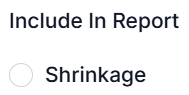
Selecting this will have stock adjustments made with this reason appear in the list when shrinkage reports are generated.
-
Click on “Save” to create the new Reason for Discrepancy
-
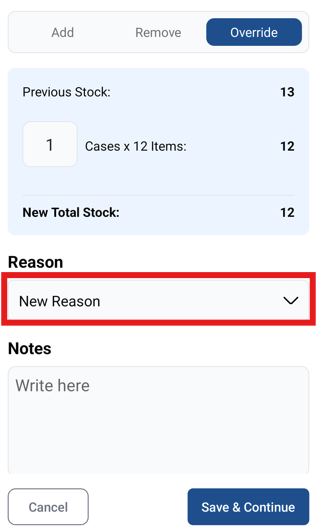
You have successfully created a new Reason for Discrepancy:

a. Users will now be able to select this new Reason for Discrepancy when changing stock:
Deactivating a Reason for Discrepancy
If a Reason for Discrepancy is no longer applicable, it can be deactivated so that it can no longer be selected.
-
Navigate to the top right-hand corner of Vego Inventory, and click on the small circle with your initials
-
Click on “Organization Settings”
-
Click on “Reason for Discrepancy”
-
Find the reason you wish to deactivate and click on the circle with a line through it

-
You have successfully deactivated the Reason for Discrepancy

a. You can reactivate it, if need be, by clicking on the revolving arrows
Setting a Default Reason
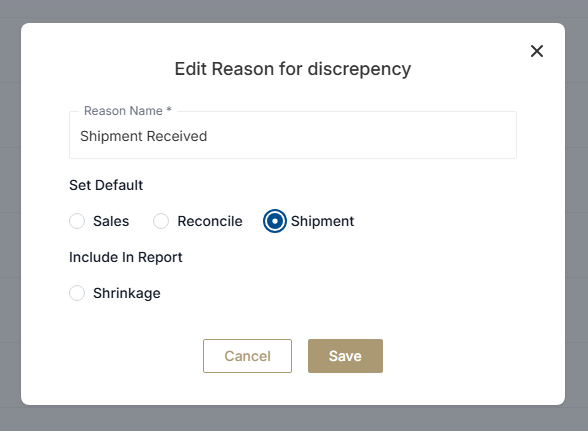
A default reason will be the reason that defaults for a given stock change type. A user can change the type per item when needed. A separate default can exist for each of the three ways to change stock: Making sales, reconciling stock, and receiving shipments. Here is how you set a default reason for discrepancy.
-
Navigate to the top right-hand corner of Vego Inventory, and click on the small circle with your initials
-
Click on “Organization Settings”
-
Click on “Reason for Discrepancy”
-
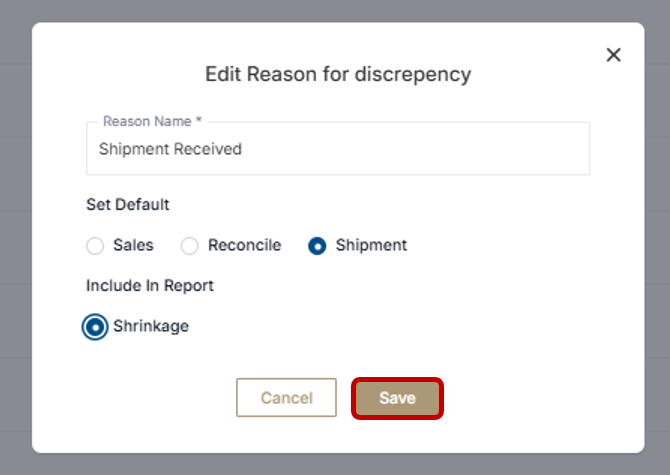
Locate the reason you would like to set as the default and click on the pencil icon to edit its information

-
Click on the action that you would like to have this default reason for discrepancy under “Set Default”
-
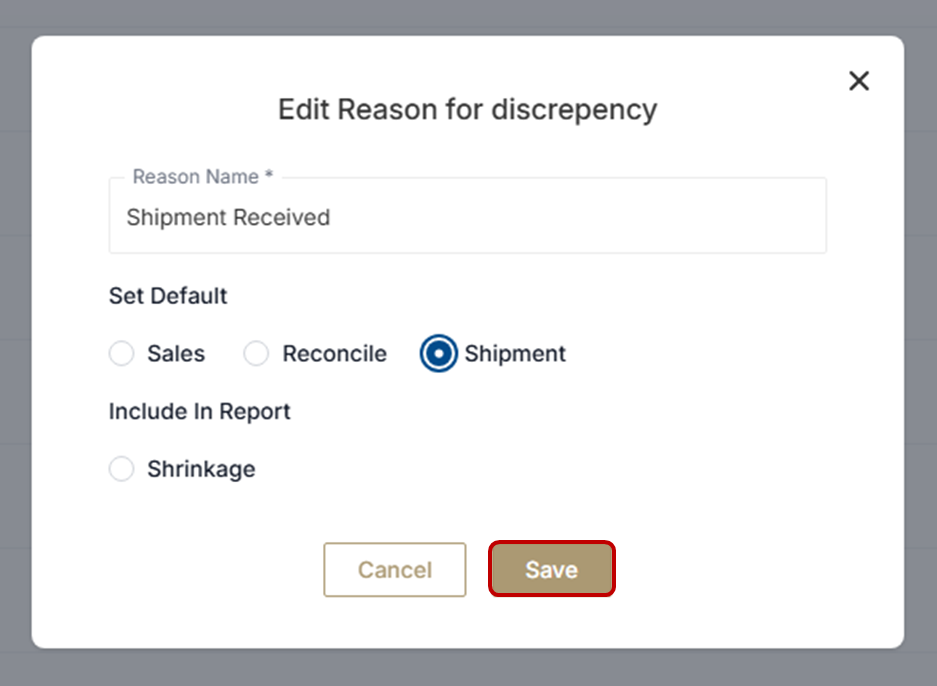
Click Save
-
You have successfully set a default reason
Include in Report
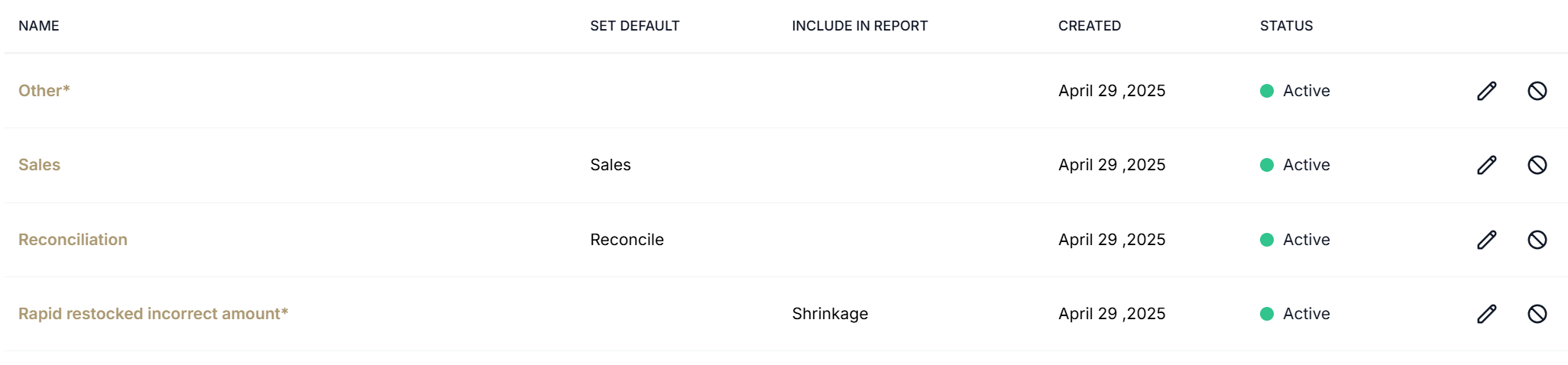
Within the Reason for Discrepancy tab, you will find a column labeled “Include in Report”. This indicates whether or not this reason for the discrepancy will be included in that specific report. In the screenshot below, you can see that the reason “Rapid restocked incorrect amount” is included in shrinkage reports, while “Other”, “Sales”, and “Reconciliation” are not.
How to Include a Reason for Discrepancy in a Report
-
Navigate to the top right-hand corner of Vego Inventory, and click on the small circle with your initials
-
Click on “Organization Settings”
-
Click on “Reason for Discrepancy”
-
Locate the reason you would like to add to a report, and click on the pencil icon to edit

-
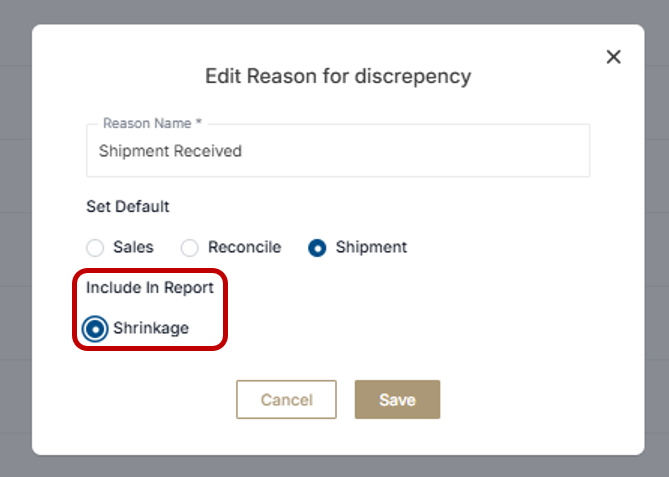
Select the report you would like it to appear on
-
Click Save
-
You have now successfully included a Reason for Discrepancy in a Report