
Vego Inventory can automatically generate stock on hand and shrinkage reports. These reports are an easy and effective way to better understand your stock levels and how they are changing. After creating a report, it will be downloaded to your device as an .csv workbook (Excel file). This makes it very easy to send and receive reports.
The type of reports available for stock on Vego Inventory are;
-
Stock on Hand Report - View current inventory quantities and costs by item across locations for a given date.
-
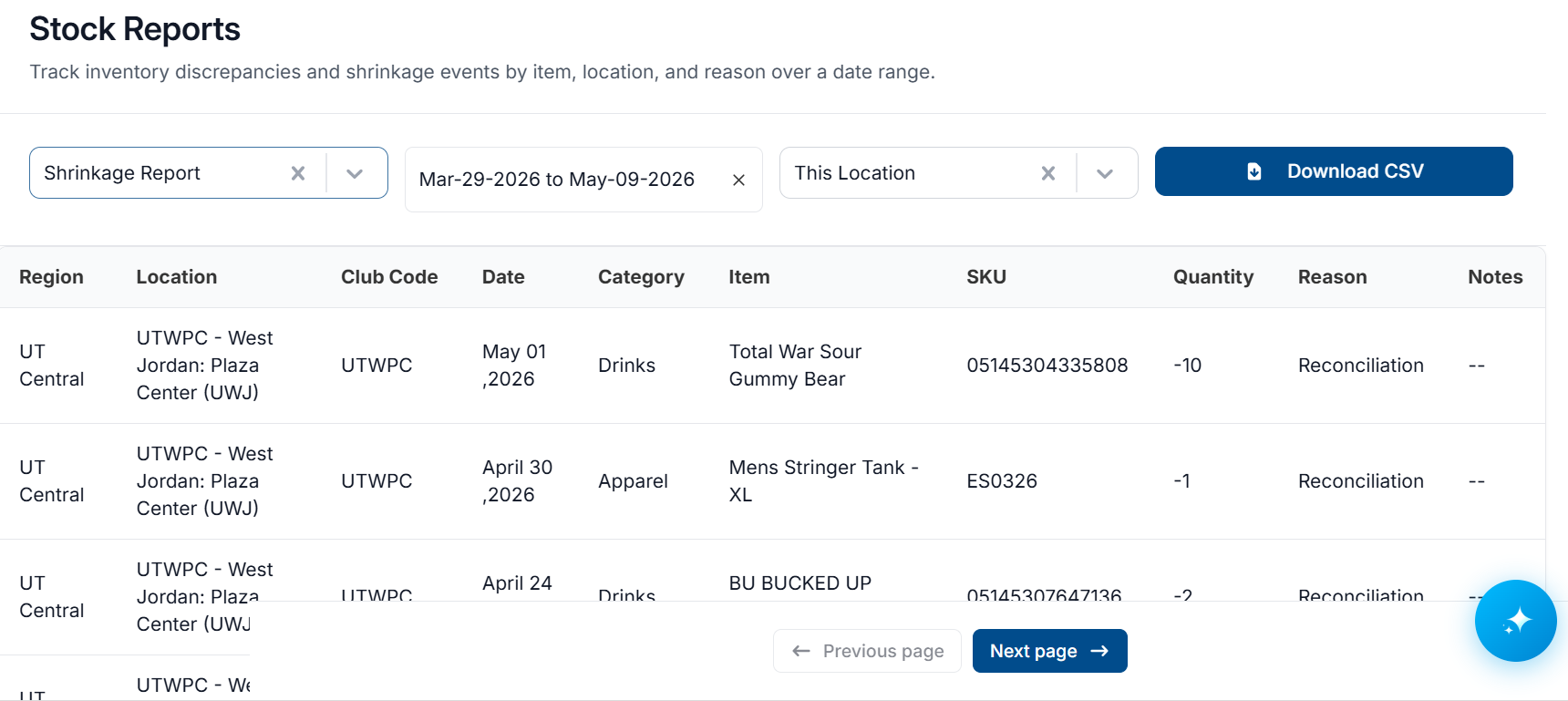
Shrinkage Report - Track inventory discrepancies and shrinkage events by item, location, and reason over a date range.
-
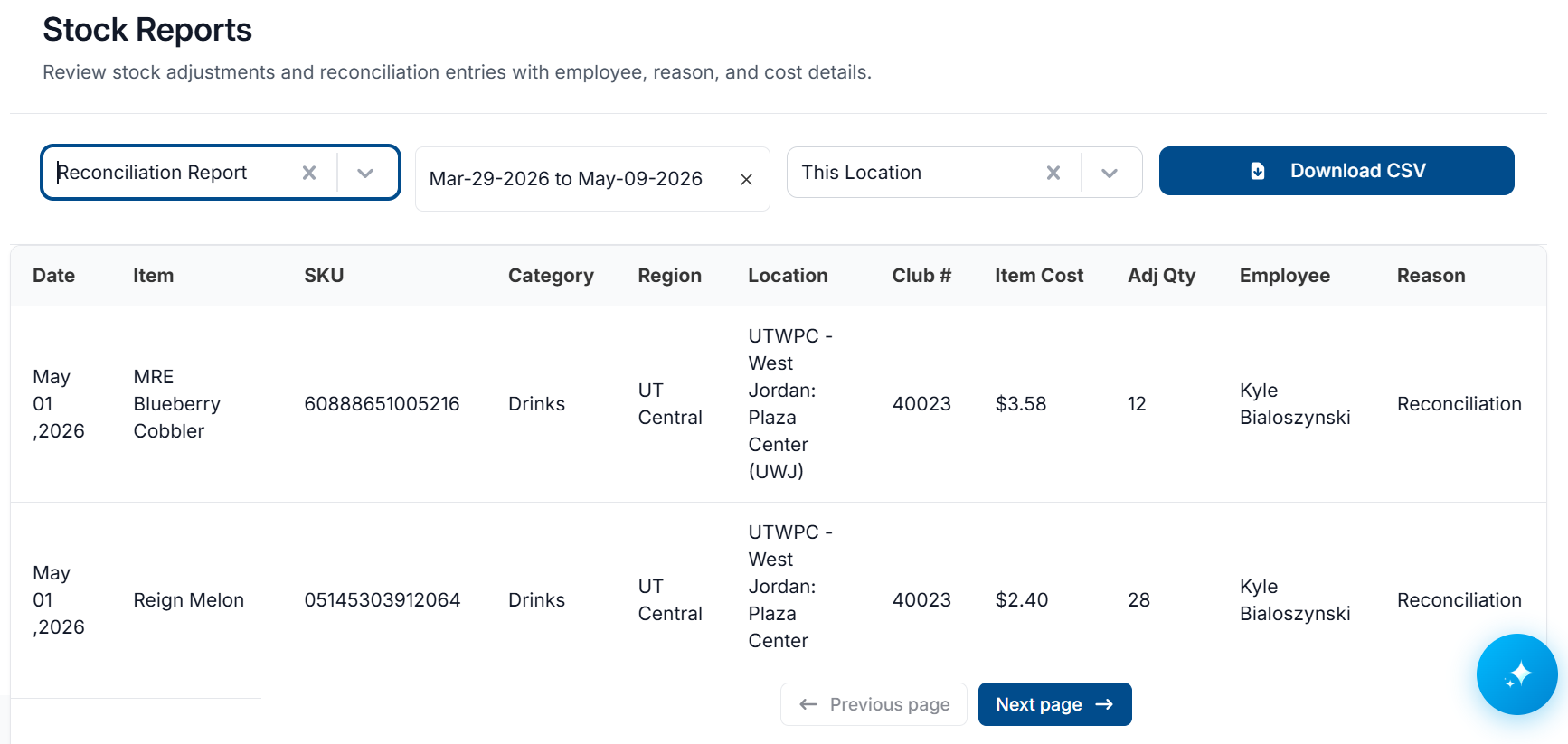
Reconciliation Report - Review stock adjustments and reconciliation entries with employee, reason, and cost details.
Explore the following topics about Stock Reports:
Access Stock Reports
-
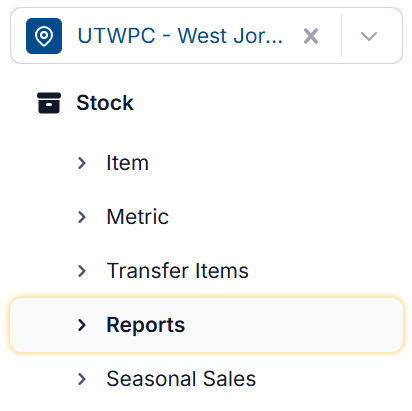
From the Dashboard, navigate to the left-hand side of the menu and select Stock, then select Reports
Create a Stock on Hand Report
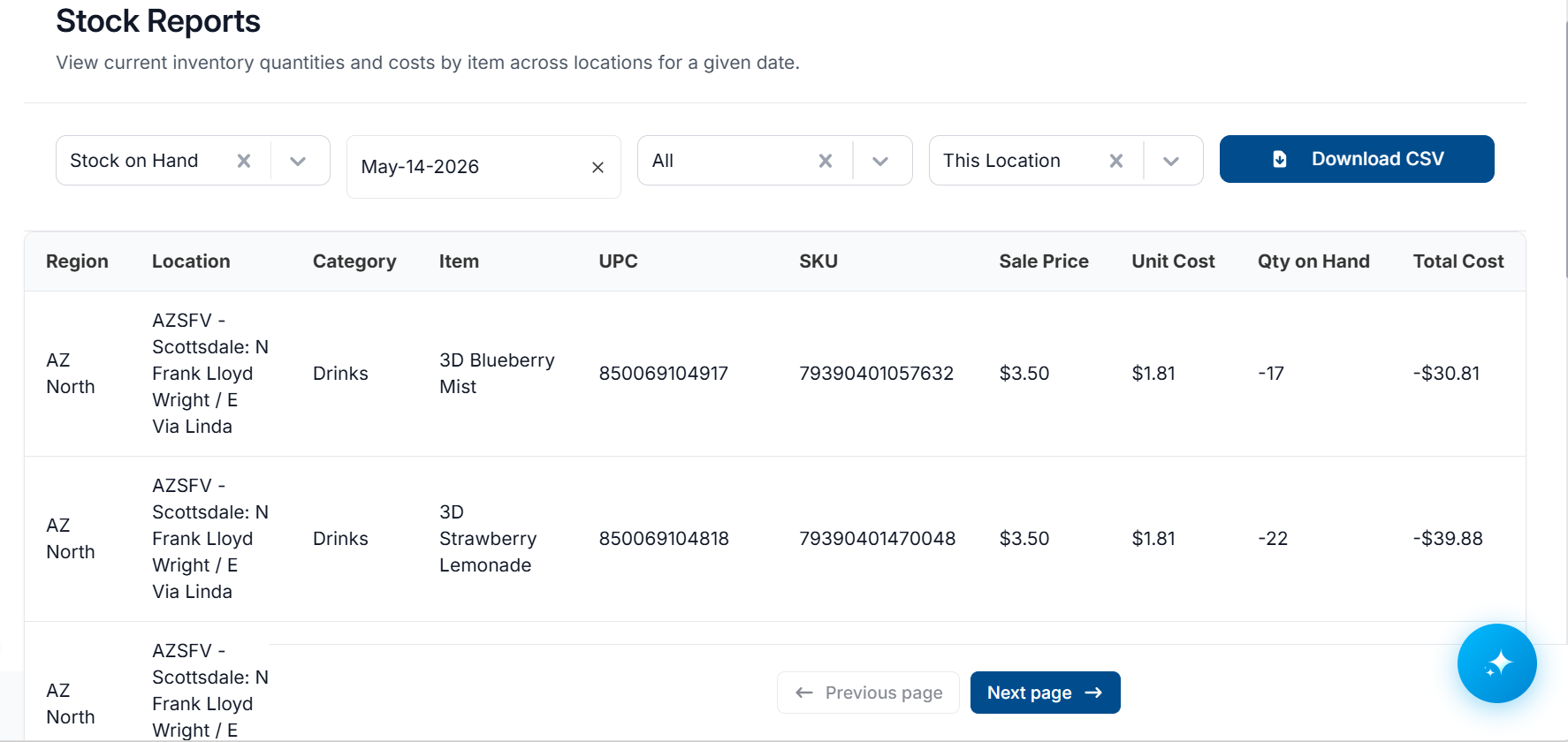
Stock on Hand Reports contain the stock levels and information regarding all items currently in stock at the selected location(s). This includes things like Unit Cost, Unit Price, SKU, UPC, and more.
To create a Stock on Hand report:
-
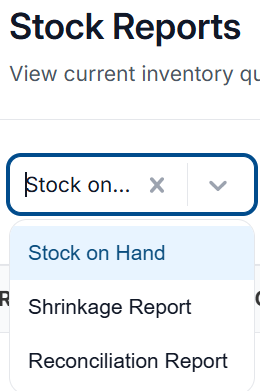
From the Stock > Reports page, select the dropdown underneath Stock Reports select Stock on Hand
-
Select the Date and apply any desired Category filter, then select if This Location or All My Locations should be included.

-
The stock on hand report will generate on the webpage. To export the report to .csv format, click Download CSV
-
The .csv file will download to your files. You have successfully exported a Stock on Hand report

-
Below is a list of each column of the report and what they represent:
|
Column |
Meaning |
|---|---|
|
region |
Region of the club for the item |
|
locationName |
Name of the club for that item |
|
locationCode |
Code for the club for that item |
|
locationABCNumber |
ABC number for the club for that item |
|
categoryName |
Category for that item |
|
itemName |
Name of the item |
|
itemUPC |
UPC of the item |
|
itemSKU |
SKU of the item |
|
salePrice |
Sale Price of the item |
|
unitCost |
Cost per item for that item |
|
quantityOnHand |
The quantity on hand at the given club for the item |
|
quantityOnOrder |
The quantity currently on order at the given club for the item |
|
totalCost |
UnitCost multiplied by quantityOnHand. Represents the cost for all currently on hand stock for that item. |
Create a Shrinkage Report
Shrinkage reports tell you where you lost stock, and how. If you sell a perishable item, and it expires before you sell it, you must remove that item from your stock. Or perhaps an item is stolen, and it must be removed from your stock. Vego Inventory Shrinkage Reports collect and combine all events like this and create a report, so you can see how and why you’re losing stock.
-
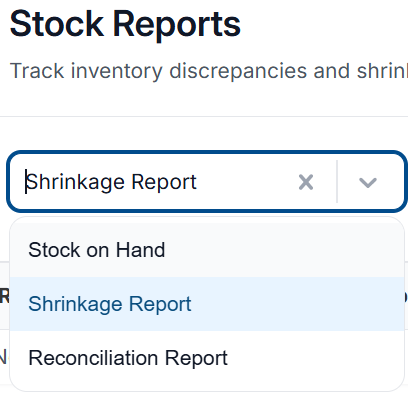
Select the dropdown underneath Stock Reports, and select Shrinkage Report
-
In the filter options, select the date range to be included in the report and select if This Location or All My Locations should be included

-
The report will generate on the webpage. To export the report to .csv format, click Download CSV
-
The .csv file will download to your files. You have successfully exported a Shrinkage Report.

-
Below is a list of each column of the report and what they represent:
|
Column |
Meaning |
|---|---|
|
region |
Region of the club for that reduction for the item |
|
locationName |
Name of the club for that reduction for that item |
|
locationClubCode |
Code for the club for that reduction for that item |
|
date |
Date that the reduction in quantity was recorded |
|
itemCategory |
Category for that item |
|
itemName |
Name of the item |
|
itemSKU |
SKU of the item |
|
quantity |
The quantity on hand at the given club for their item after the given reduction |
|
unitCost |
Cost per item for that item |
|
reconciliationReason |
Reason for adjustment chosen for the reduction |
|
discreprancyNotes |
Notes provided, if any, for the reduction |
Create a Reconciliation Report
Vego Inventory Reconciliation Reports collect and combine all changes made to stock, other than through sales. This can allow you to track the changes made to stock.
-
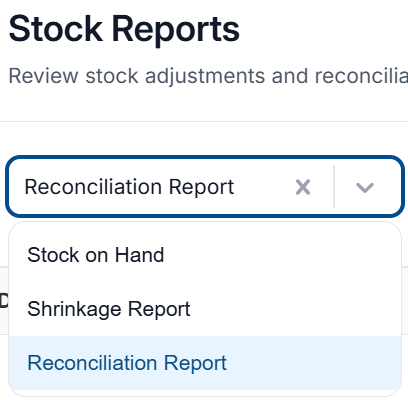
Select the dropdown underneath Stock Reports, and select Reconciliation Report
-
In the filter options, select what date range will be included in the report and if the report will include all your locations, or just this one.

-
The report will generate on the webpage. To export the report to .csv format, click Download CSV
-
The .csv file will download to your files. You have successfully exported a Shrinkage Report.

-
Below is a list of each column of the report and what they represent:
|
Column |
Meaning |
|---|---|
|
adjustmentDate |
Date that the given item adjustment occurred |
|
itemName |
Name of the item |
|
itemSKU |
SKU of the item |
|
itemCategoryName |
Category of the item |
|
regionName |
The region for the club where the adjustment occurred |
|
locationName |
The club’s name where the adjustment occurred |
|
clubNumber |
The club number where the adjustment occurred |
|
itemCost |
The cost per unit of the item |
|
adjustmentQuantity |
The change in quantity made to the item’s stock during this adjustment a. Positive means the amount was added to the total b. negative means the amount was removed from the total |
|
employee |
The name of the employee who made the adjustment |
|
adjustmentReason |
The reason selected for the adjustment |