
How to Access Notifications
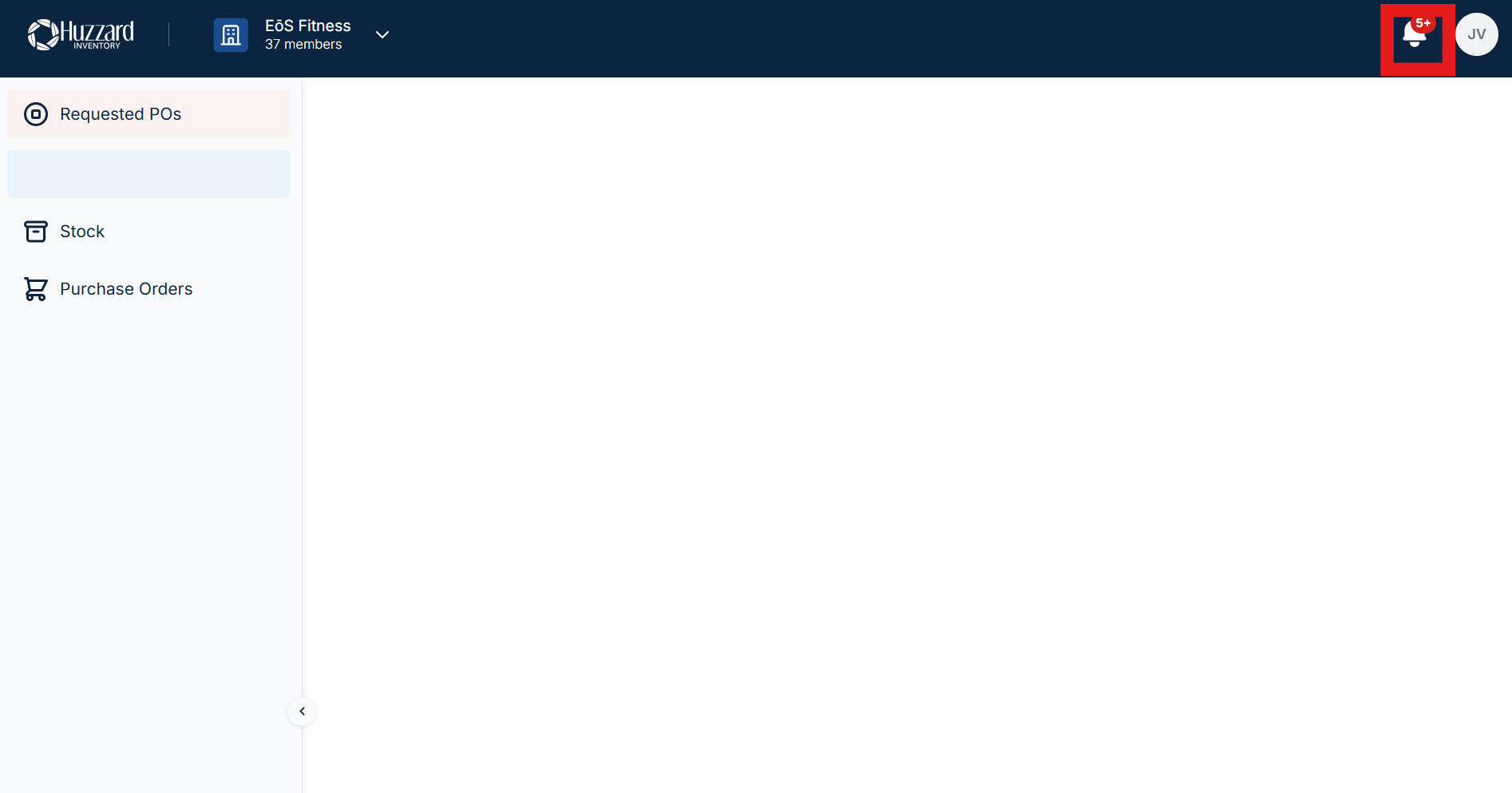
An admin can access notifications by clicking on the bell at the top right of the web browser. The number in red, if present, displays the number of new notifications that there are.
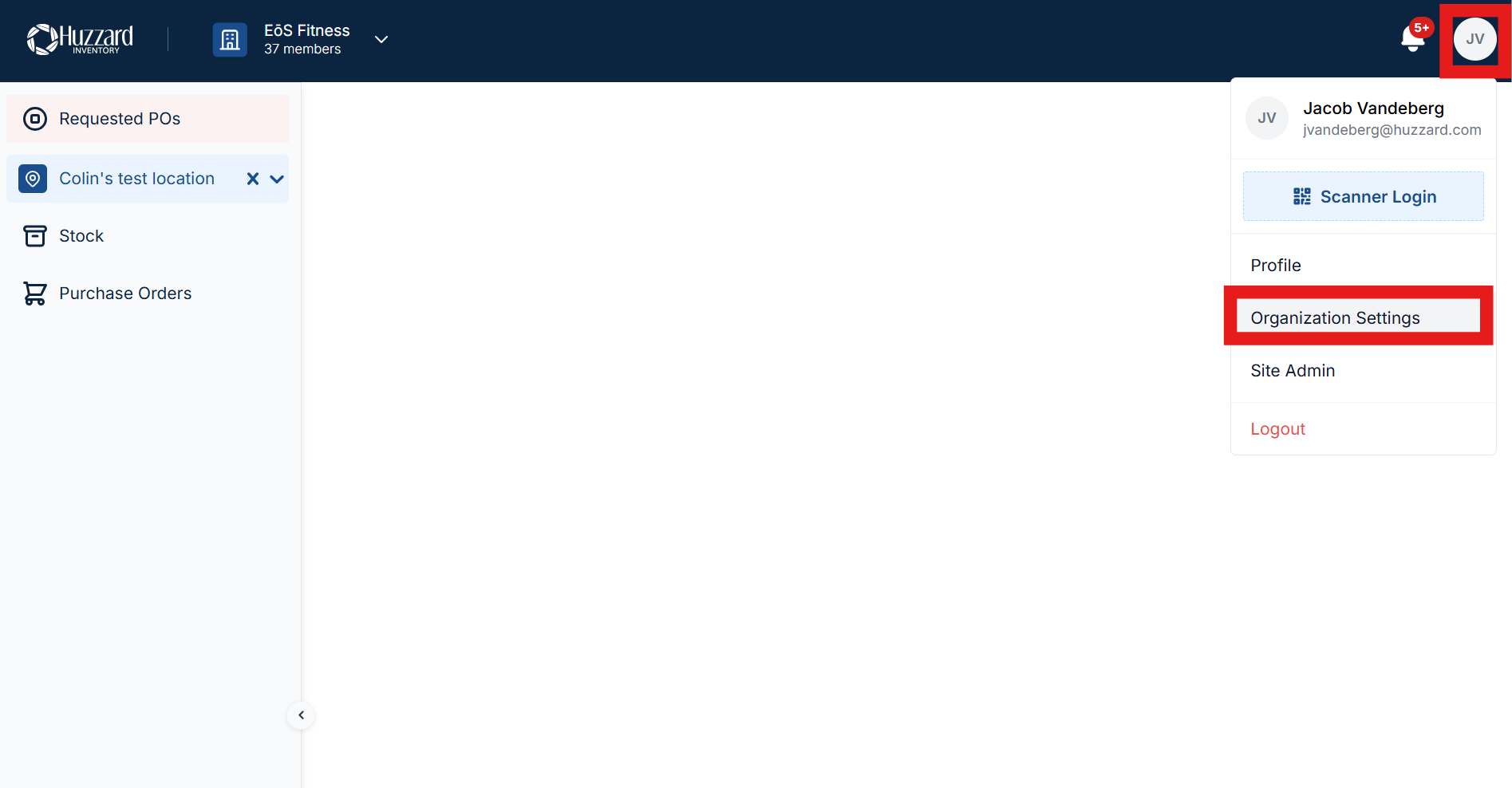
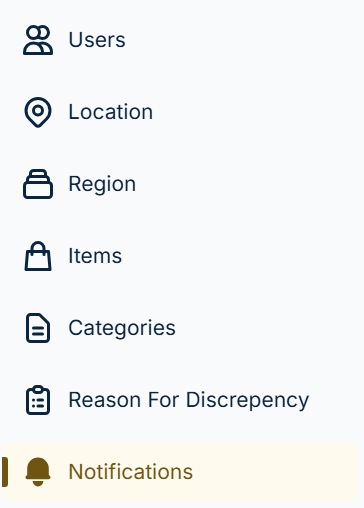
Alternatively, you can reach Notifications through the Organization Settings menu:
Notification Filtering
When in Notifications, there are many ways to filter your Notifications present at the top of the screen:

Search
Allows you to search for notifications that include a given word or number.
Select Region
Allows you to filter by region, displaying only notifications generated from clubs within that/those region(s).
Select Location
Allows you to filter by location, displaying only notifications generated from clubs that/those specific club(s).
Date Range
Allows you to filter by date, displaying only notifications generated within that time frame.
Read or UnRead
Allows you to see only notifications that are read or unread, depending on your selection.
Additional Options
Just below the filtering options are two additional options:

Mark All Read
Marks all messages as read, removing their emboldening, removing them from the number of new notifications, and making the Read filter include them, rather than the unread filter.
This can be done individually as well by clicking on the eye-with-a-line-through-it next to the notification:

Clicking on it again will render the notification unread.
Export Notifications
Exports the notifications to a CSV file.
Types of Notifications
UPC <UPC> not found during sales import

This notification is created when a UPC on a sales import is not linked to any item in Vego Inventory.
If the UPC should be linked to an item, add the UPC to the item.
User <user> has requested <UPC> be assigned to <item> with quantity <number>

This notification is created when a user, during a reconciliation or shipment receival, scans a UPC not yet linked to any item. When they do so, they can request that it be added and select an item to which it will be added.
If the UPC should be linked to that item, add the UPC to the item.