
In Vego Inventory, a Category is used to group items of a similar type together. For instance, strawberry flavored water and watermelon flavored water are two different Items, but can be grouped under the same Category of “Drinks”.
Access Category Settings
-
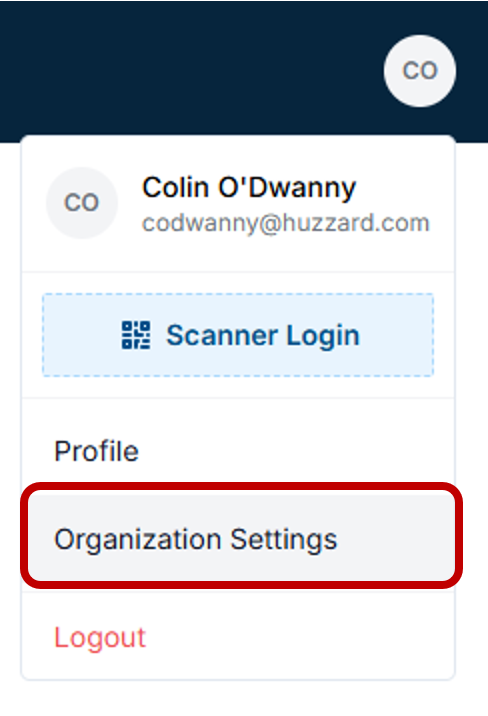
Navigate to the top right-hand corner of Vego Inventory, and click on the small circle with your initials

-
Click on “Organization Settings”
-
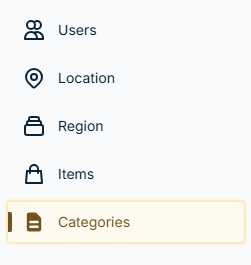
Navigate to the left-hand side of the screen and click “Categories”
Adding Categories
-
Access Categories Settings. View Instructions Here
-
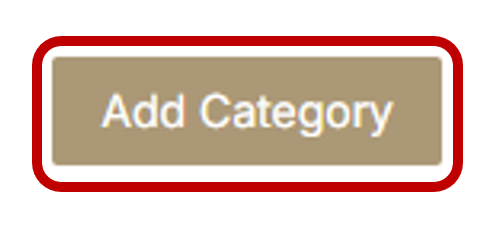
In the upper right-hand corner of the menu, click the “Add Category” button
-
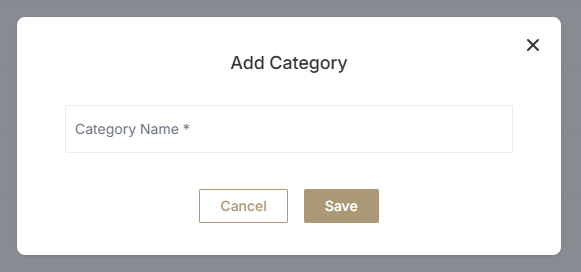
In the pop-up menu, type the name of a new category you would like to add and click “Save”
-
You have now successfully added a category
Editing Categories
-
Access Categories Settings. View Instructions Here
-
Locate the Category that you would like to edit, then click on the pencil icon on the right-hand side of the menu

-
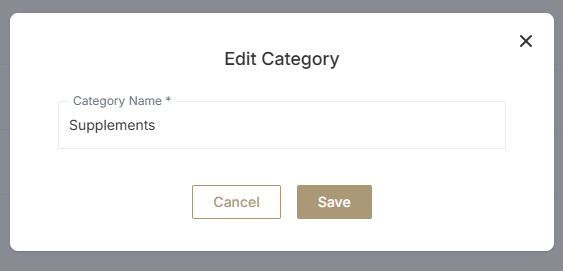
In the pop-up window, edit the category and click “Save”
-
You have now successfully edited a category
Deleting Categories
-
Access Categories Settings. View Instructions Here
-
Locate the category you would like to delete, and click the trash can icon found on the right-hand side of the menu

-
A prompt will appear asking if you are sure you want to delete the Category. If you are you want to delete it, click “Yes, delete it”
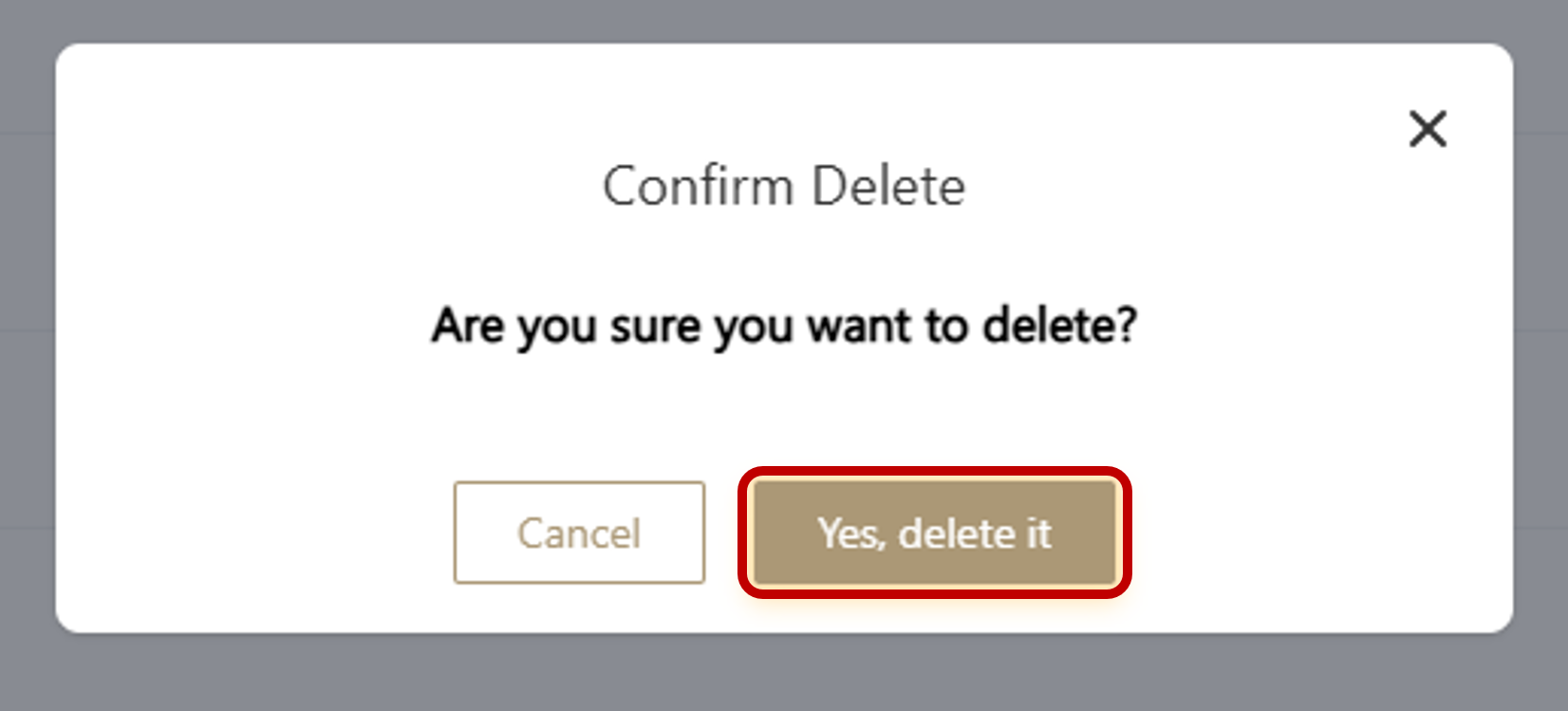
Deleting a Category will delete all items within that Category
-
A confirmation message will appear in the upper right-hand corner of the menu saying “Delete category successfully”
-
You have now successfully deleted a Category