Accessing the Organization Message Banner
-
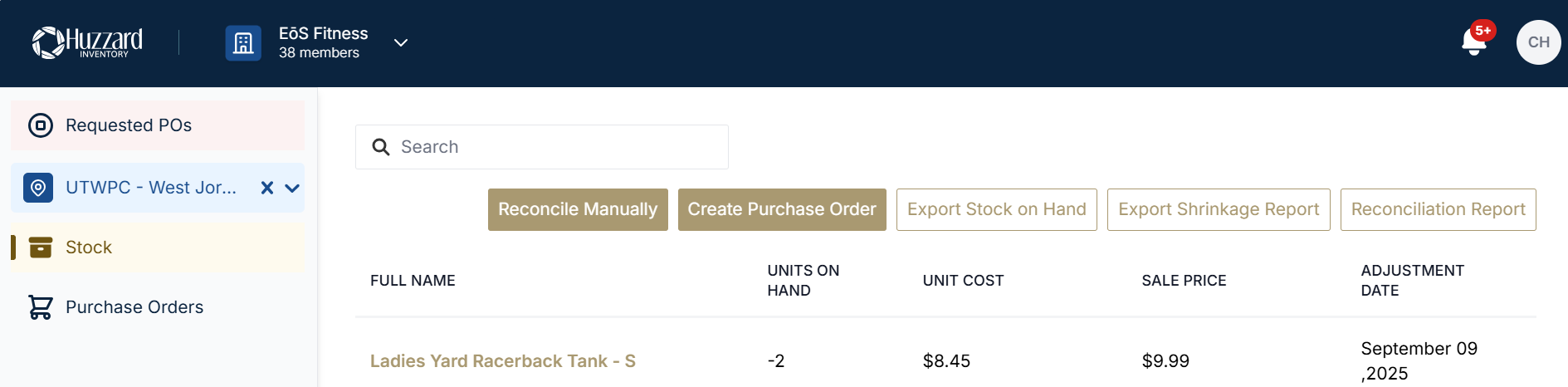
Navigate to the top right-hand corner of Vego Inventory, and click on the small circle with your initials

-
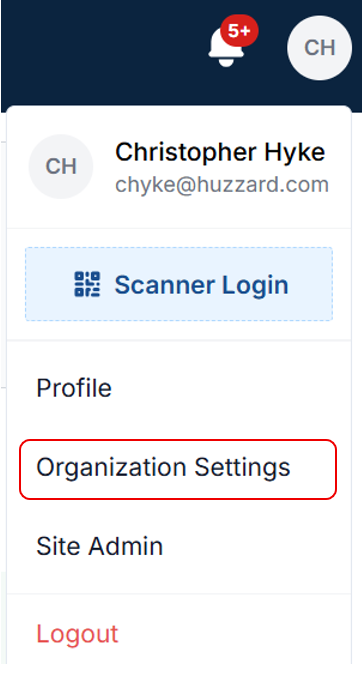
Click on “Organization Settings”
-
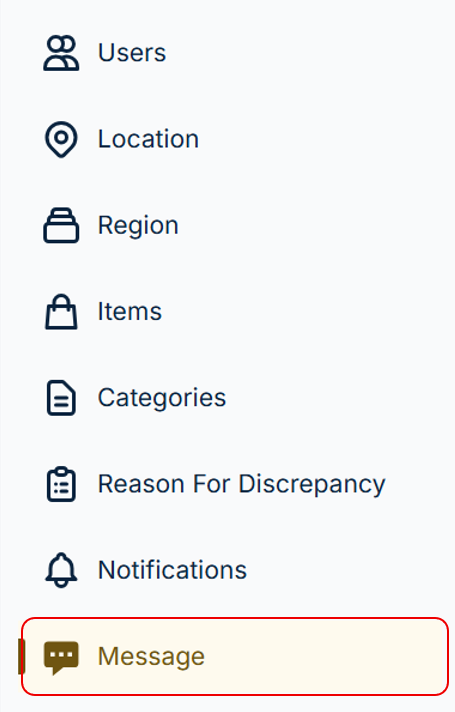
Click the “Message” tab on the left-hand side of the screen
-
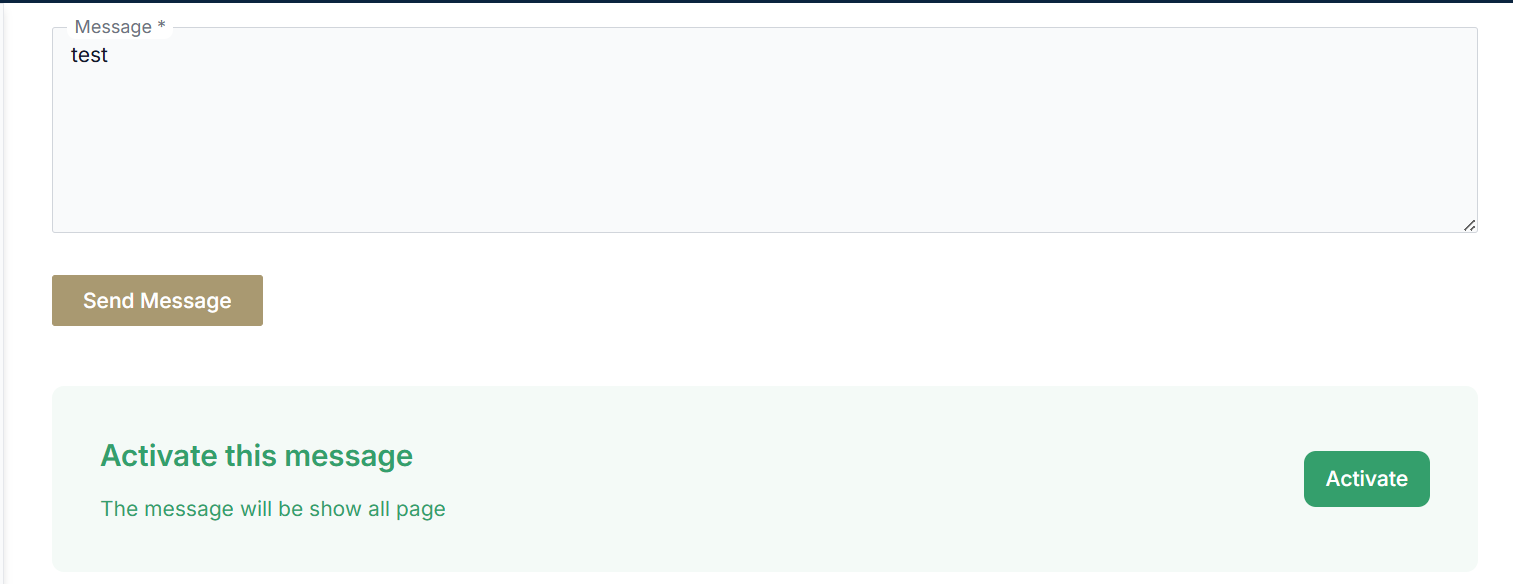
You will land on the following page:
Setting the Content of the Organization Message Banner
-
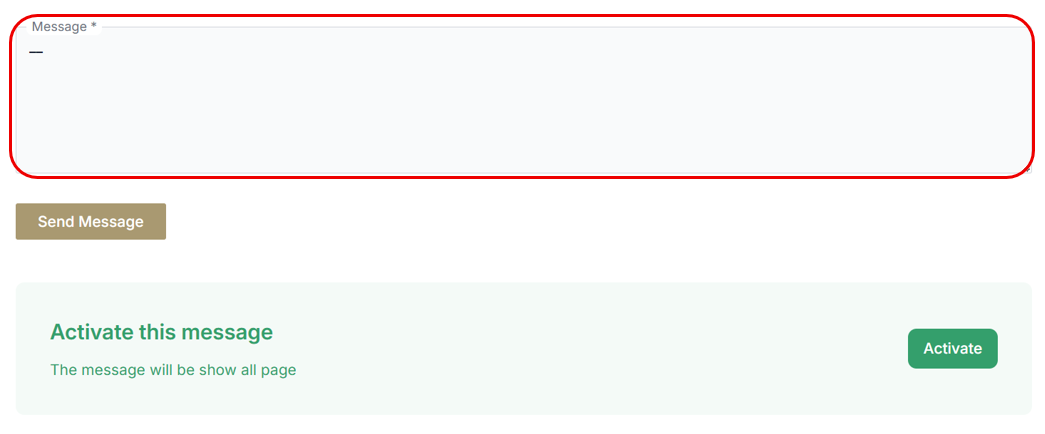
Select the text box labeled Message
-
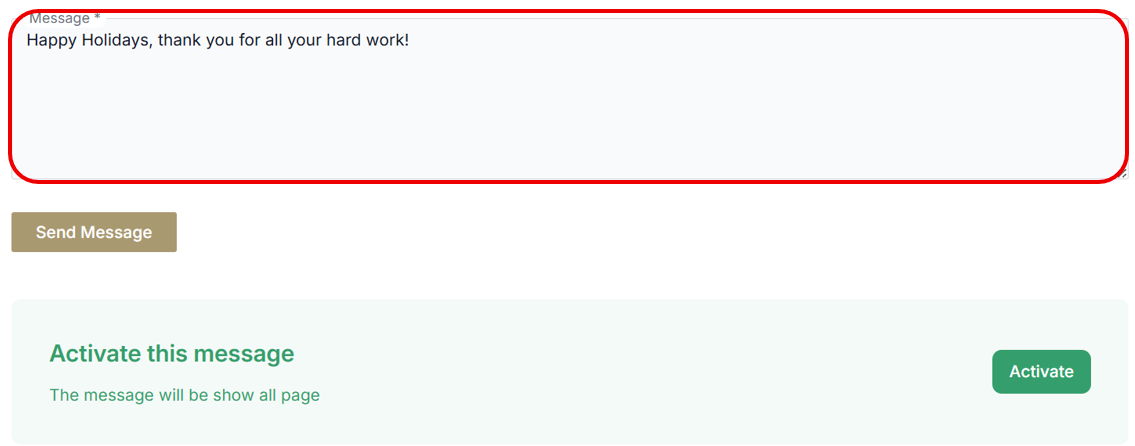
Enter the content you want displayed on the banner
-
Select Send Message to set the banner content
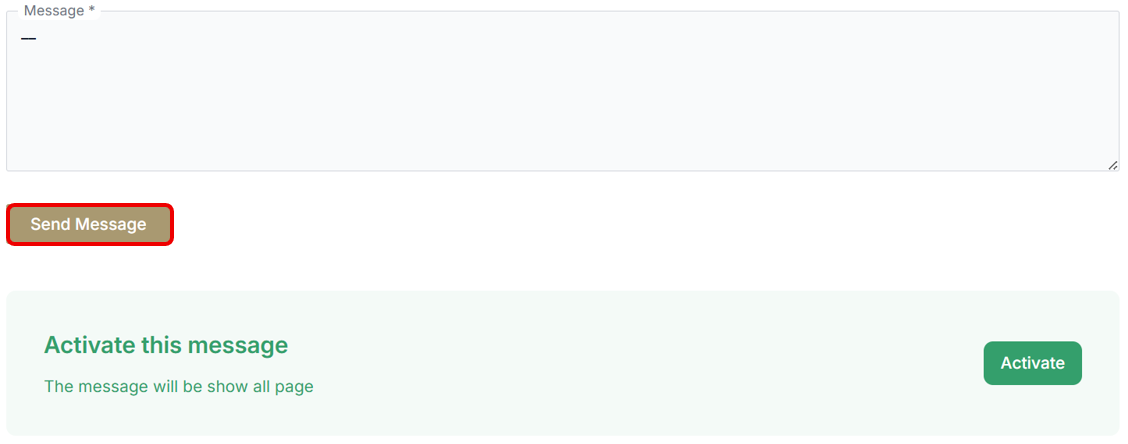
The banner and its contents will not be displayed until the Organization Admin has enabled the Organization Message Banner
If the banner is already enabled, selecting Send Message will automatically update the banner being displayed.
Enabling Organization Message Banner
-
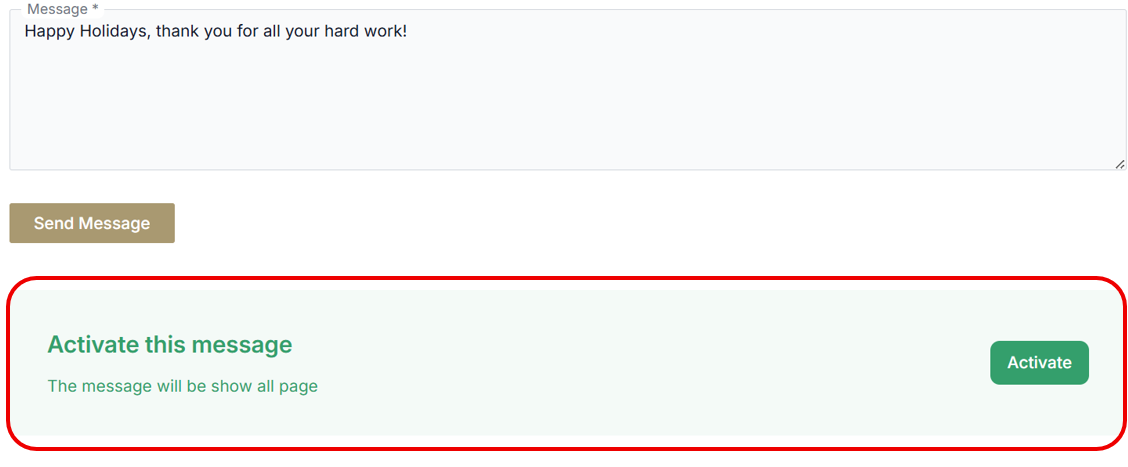
If the banner is currently disabled, you will see the following message:
-
Select Activate to enable the banner

-
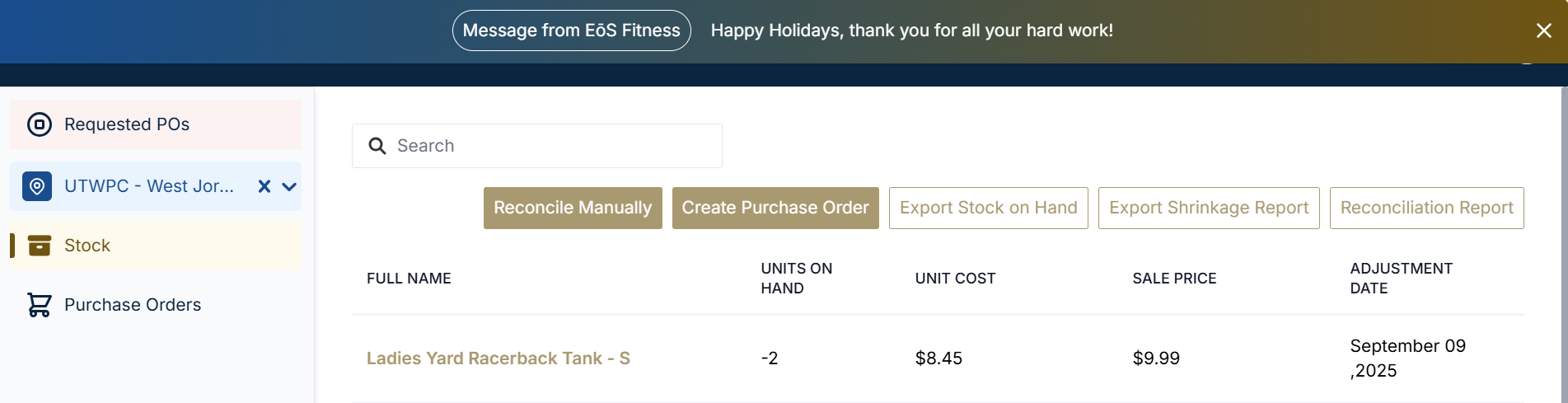
Once you return to a location's page, you will see the banner displayed at the top of the screen
Disabling Organization Message Banner
-
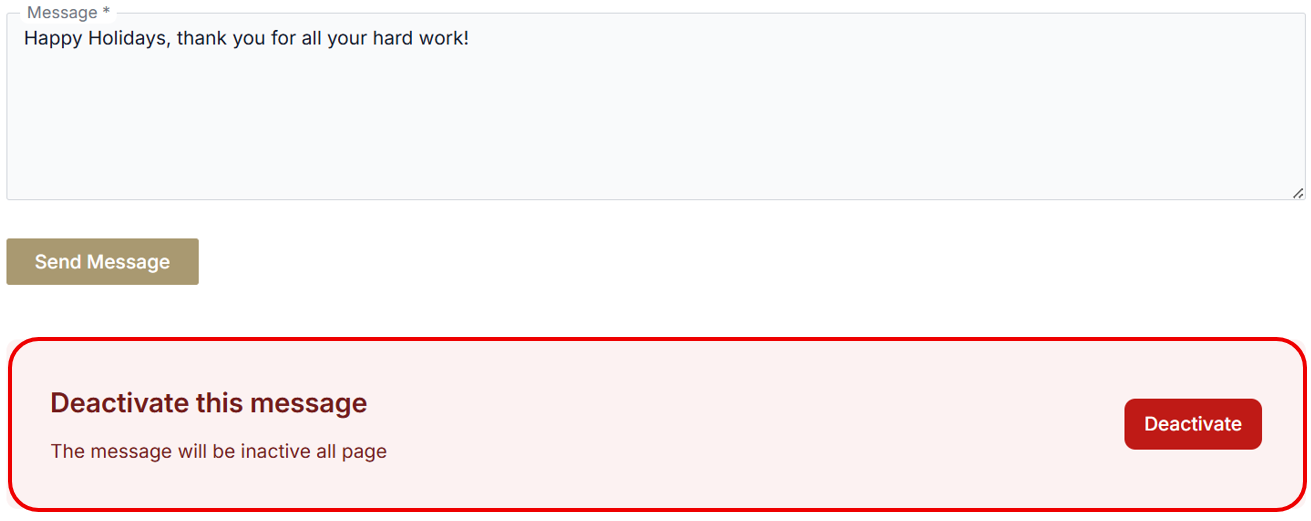
If the banner is currently enabled, you will see the following message:
-
Select Deactivate to disable the banner

-
Once you return to a location's page, the banner will no longer display