
Vego Inventory WiFi Inventory Collection App Demo Video
Authenticating HSTA-209
To be able to utilize the HSTA-209 Wifi Inventory Collection app, you will need to first log in to the device utilizing your Vego Inventory account.
This is completed via a QR code scan that is generated in Vego Inventory when you log into the web app.
Log in to Vego Inventory Web
-
Access inventory.huzzard.com
-
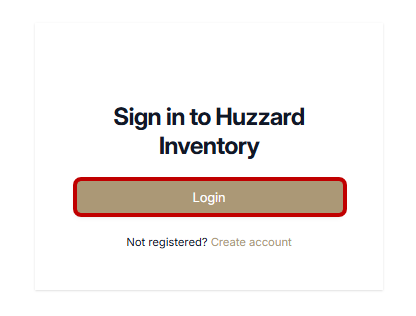
Once the sign-in screen displays, click the Login button that displays
-
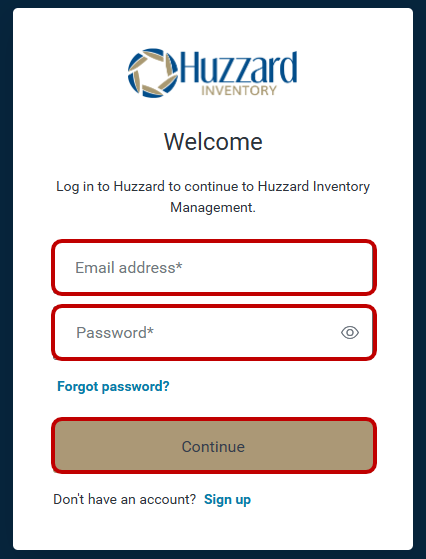
If you have a Vego Inventory account, enter your account credentials and click “Continue”. If you do not have credentials, follow instructions to create a Vego Inventory account
Logging In to HSTA-209
Vego Inventory utilizes a secure authentication platform that keeps your data safe from unauthorized users. To authenticate the HSTA-209 Wi-Fi Inventory Collection app, you must generate a login barcode via the Vego Inventory web app.
Acquire Login Barcode
-
Log In to Vego Inventory on your PC
-
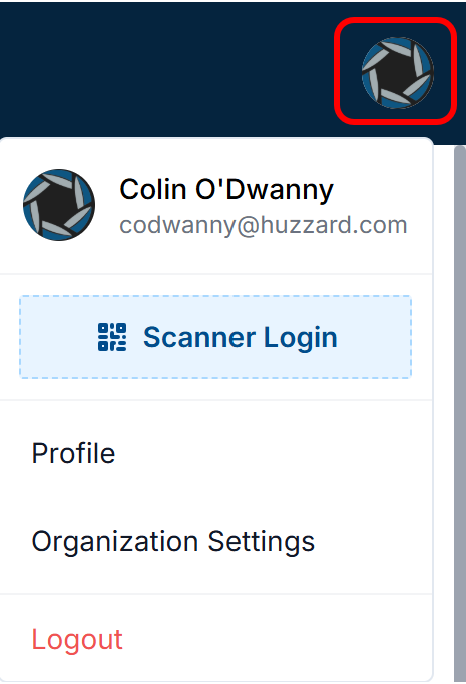
Click your profile in the upper right-hand corner.
-
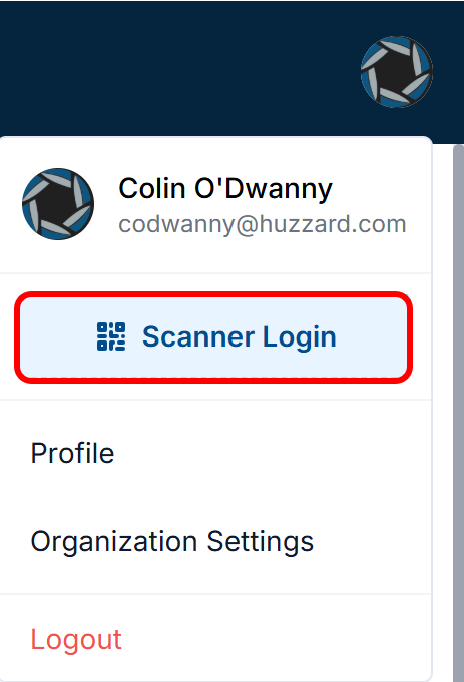
Click “Scanner Login”
-
Use the dropdown arrow to see all your available locations, and ensure the correct location is selected
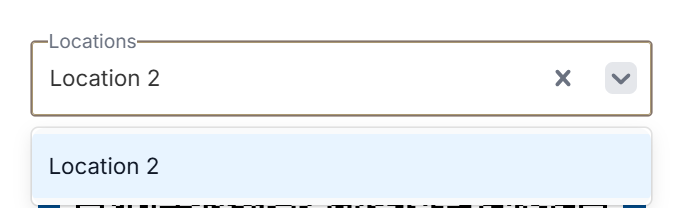
-
Once selected, the login barcode will be displayed, and is ready to be scanned by the HSTA-209 Wi-Fi Inventory Collection app
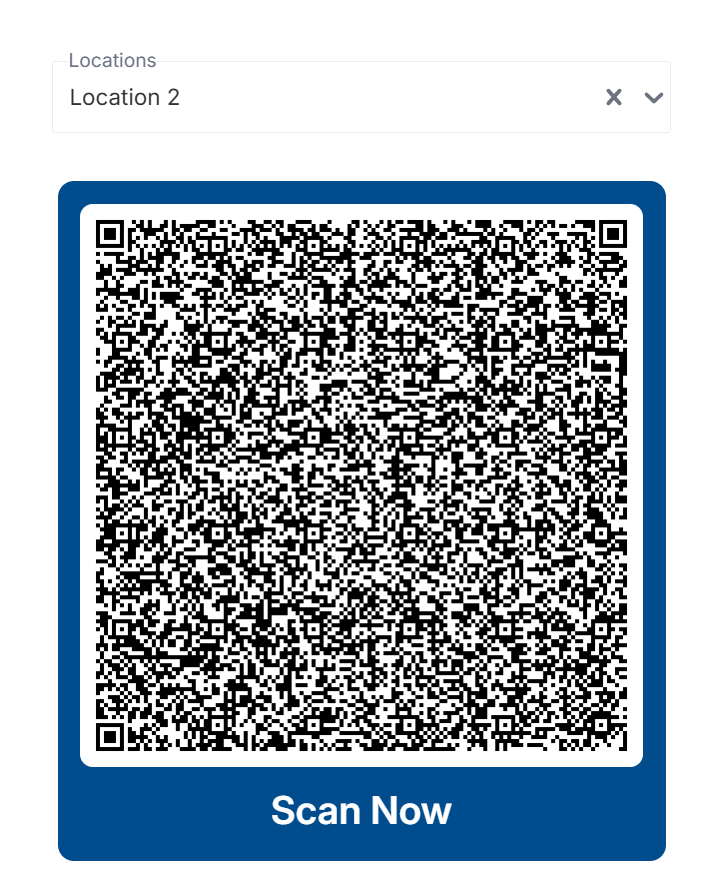
Signing in with HSTA-209 Wi-Fi Inventory Collection App
-
Open the Vego Inventory application on your HSTA-209. You should see this screen on your HSTA-209:

-
Using the yellow scan buttons on either side of the device, scan the QR code that has been generated on your PC
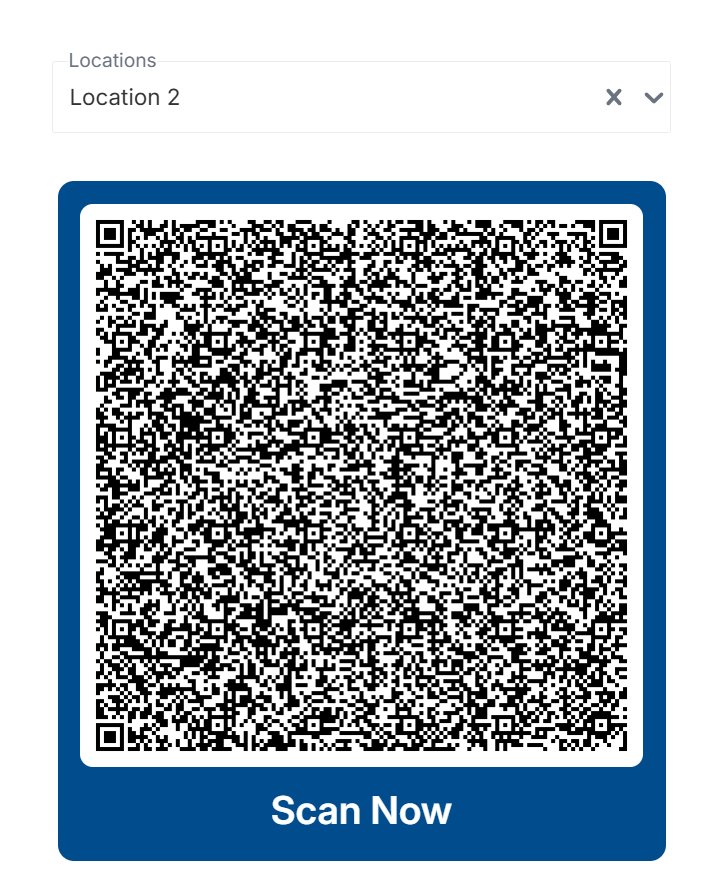
If you have difficulties with scanning the QR code of your monitor, attempt to hold the HSTA-209 at an upward angle while pointing at the QR code. This will mitigate LED reflections on the screen, preventing the scanner from decoding the login barcode
-
On your HSTA-209, you should now see a screen that has two options: Receive Shipment and Reconcile Stock. This indicates you have successfully authenticated the HSTA-209 Wi-Fi Inventory Collection app
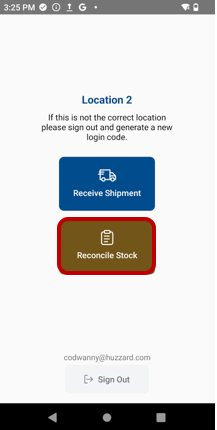
Scanning UPC Barcodes
To scan a UPC barcode, hold the HSTA-209 two to ten inches away from the barcode with the top of the device pointed towards the barcode. Then press one of the yellow scan buttons on either side of the HSTA-209
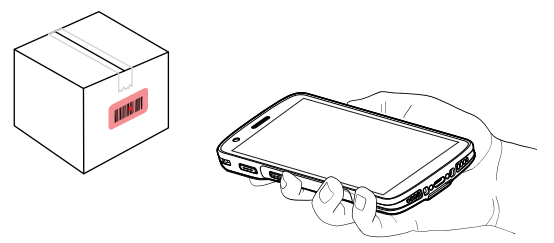
If you are scanning a barcode that is on a screen, hold the device at a slight angle from the screen. When the scanner is held perpendicular to the screen, the glare off the screen interferes with the HSTA-209’s reading
Troubleshooting the scanning function
If a barcode is not properly scanning:
-
Repeatedly move the scanner closer and further away from the barcode
-
Tilt the scanner so that it is reading the barcode from a different angle
-
If two barcodes are in close proximity to one another, use the guide light that appears when scanning with the HSTA-209. Use the small red dot that appears to precisely target the barcode you intend to scan.
Saving Inventory to Cloud
-
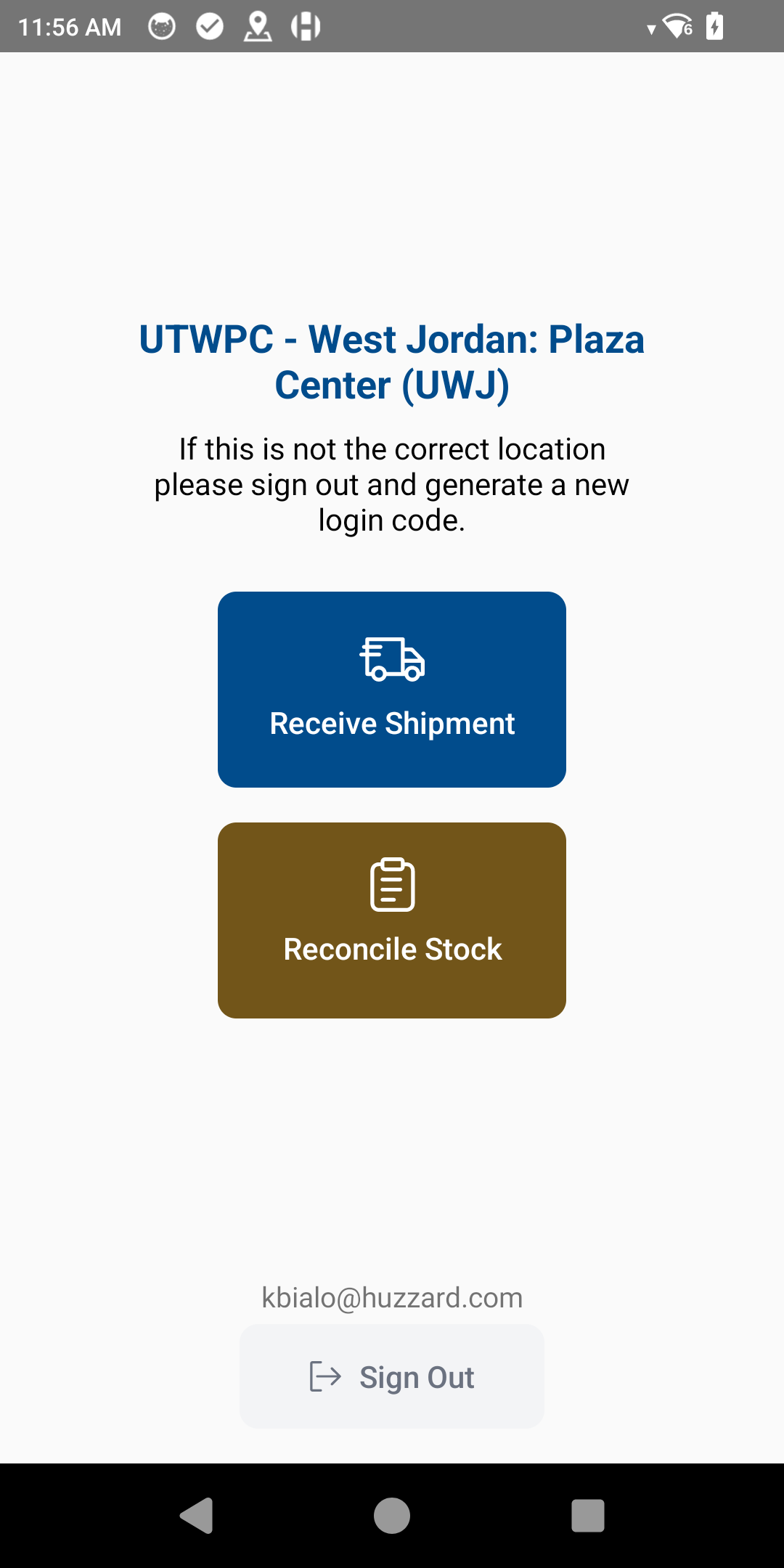
Saving your inventory updates to the cloud is extremely easy in Vego Inventory. After logging in the HSTA-209 to the correct location, you will be prompted to select either “Receive Shipment” or “Reconcile Stock”.
-
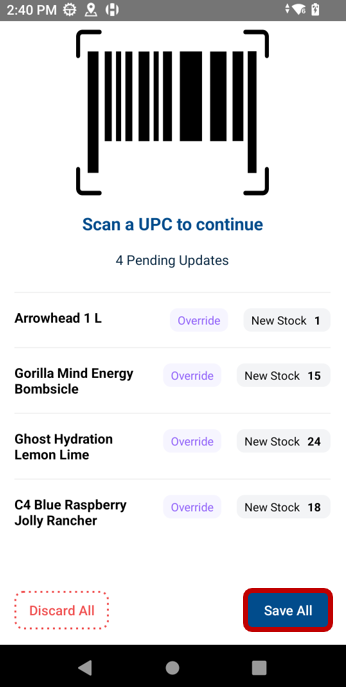
The Process for saving inventory updates to the cloud is very similar for both of these options. You will see the screen below after clicking “Reconcile Stock”. When you click “Receive Shipment”, you will be asked to select the order that you are importing, and then you will see the screen below.
![Screenshot_20250320-130906[1].png](/__attachments/a_bc2d5693f8e9f863ca3ff8ea73535402a26701109ee7dd0771200370773becb0/Screenshot_20250320-130906%5B1%5D.png?cb=76d49da1a691ccd4251f01970bfb6bc0)
-
Now we scan our UPC’s, make updates to our inventory, and then click “Save All”.
-
After clicking “Save All”, you will be asked to scan the location QR code once again.
-
This is the basic process for importing a shipment or reconciling stock in Vego Inventory