
Purchase Order Errors
Request failed with status code 400
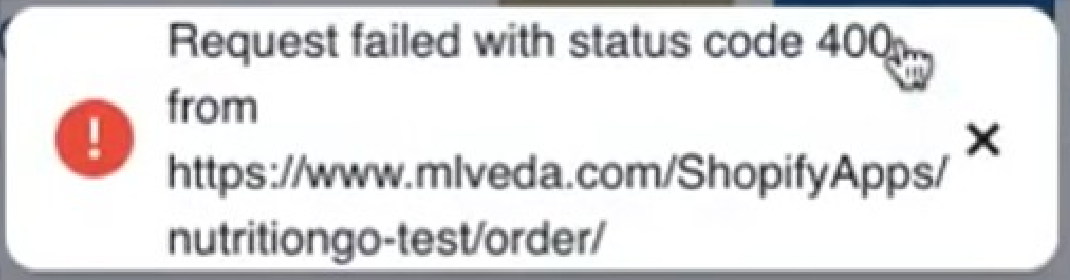
The error message “Update purchase order fail” will likely display alongside this one.
This error is one that we at the Vego Inventory team will need to resolve. In order to efficiently resolve the issue, we will need information that you can obtain by:
-
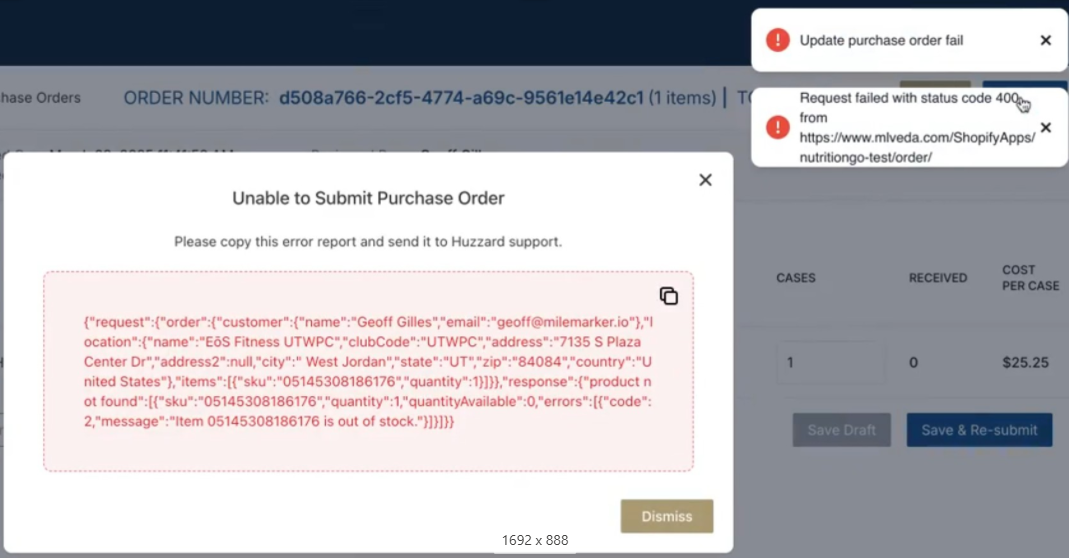
Clicking on the “Request failed with status code 400” error
-
This will display a pop-up similar to the following:
-
-
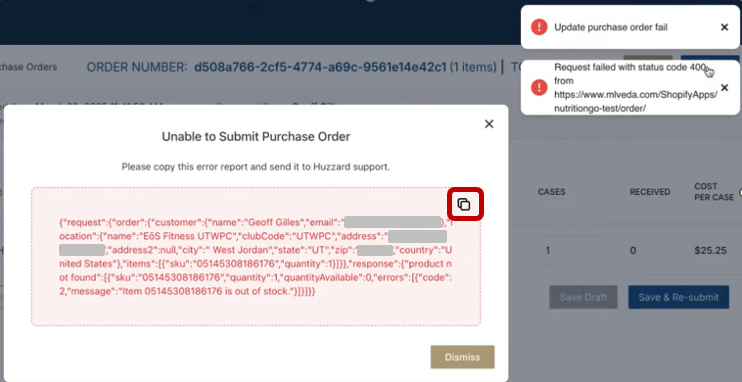
Click on the copy button on the top right of the red box
-
Create a ticket with us for the error at Vego Inventory support form, and send us the copied text alongside any other details of the error that you are seeing
-
This will help us determine the root cause of the issue and get your problem solved as quickly as possible.
-
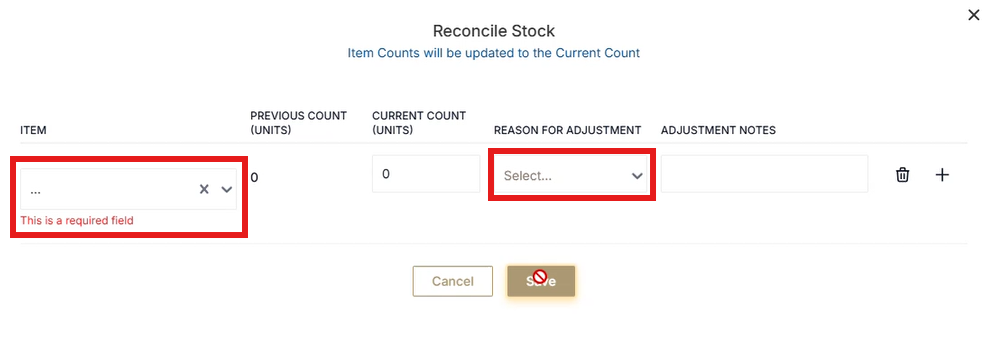
Manual Reconciliation Shows a “Red Circle with a Line Through it” When Attempting to Save
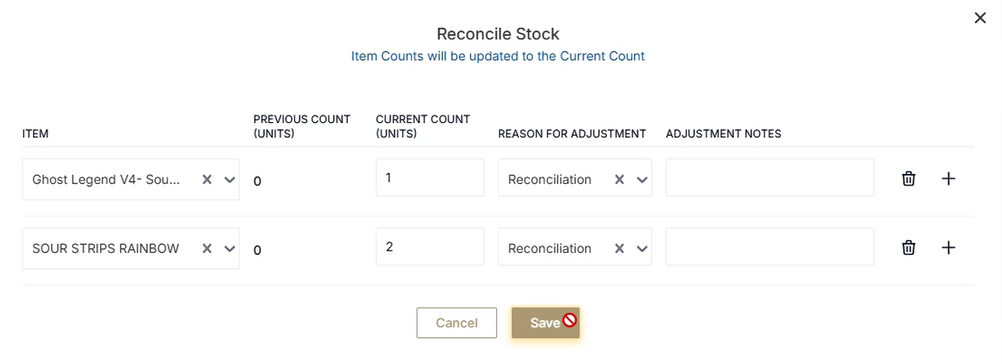
This means that the save button got disabled and can have one of two reasons:
-
An “Item” and/or “Reason for Adjustment” field was empty when first selecting “Save”
-
The “Save” button will remain disabled, even after filling in the required fields
-
To resolve, exit out of the “Reconcile Stock” pop-up and begin a fresh Manual Reconciliation
-
-
At some point during the manual reconciliation, the internet connection was lost.
-
The “Save” button will remain disabled, even after the connection is restored
-
To avoid this, use the Android device in places where the internet connection is unreliable
-
-
To resolve, exit out of the “Reconcile Stock” pop-up and begin a fresh Manual Reconciliation
-
Requested Items not Validated by Supplier
This error can occur when the items being requested in the purchase order have not been validated to be available from the supplier. To force a validation of the requested items: Pick any item in the purchase order, increase the case count, wait 5 to 10 seconds, and revert the case quantity back to the original quantity.
Once the items are validated with the supplier, you will see if any of your requested items are unavailable or out of stock.
This problem will be solved with the release of Vego Inventory 1.7.0. After the release of Vego Inventory 1.7.0, items will automatically be validated when added to a purchase order.
Network Connection Errors
Network Error - No Internet Connection
If you are receiving this network issue, here are a few things to check:
Connected to the Guest WiFi Network
If your HSTA-209 is connected to a guest WiFi network instead of a primary/main network, Vego Inventory will likely not be able to fully function. Typically, guest networks will have the word “guest” in the name/SSID. However, this is not always the case. If you are receiving a Network Error in Vego Inventory, but are connected to a WiFi network that does not contain the word “guest” in the name/SSID, contact your IT department to determine if the network you are using is a guest network or not.
If you are connected to a guest network, or suspect you are, contact your IT department to get your HSTA-209 connected to your primary/main network.
![Screenshot_20250417-141231[1].png](/__attachments/a_119fcb4cbad9b9d39cb8938cab216013ea28826bcdd8c0bbddd39749bac580a7/Screenshot_20250417-141231%5B1%5D.png?cb=4ab436780bf50fc0bcdeb62b79498963)
Not being connected to any WiFi Network
If your HSTA-209 is not connected to any WiFi network at all, you will receive this error when attempting to log your scanner in to Vego Inventory. To correct this, follow the instructions to connect your HSTA-209 to WiFi.
Error: Something went wrong on our server. Please try again later.
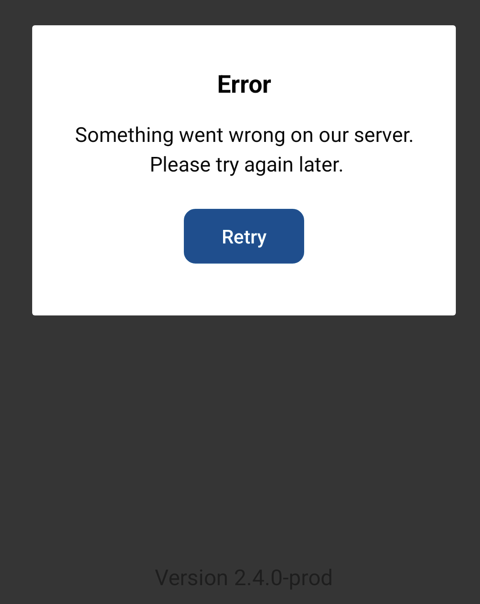
This error message can display after scanning the QR code on your PC in order to log in. There are two known causes of this error:
-
If the web browser you are using for the QR code has not been refreshed:
-
In order to resolve the issue, refresh the browser and generate a new QR code.
-
-
If your device is experiencing connection issues, even though your PC is not:
a. You will see symbols such as the following on your device, indicating connection issues:

b. In order to resolve the issue, follow the steps for forgetting and reconnecting to a network.
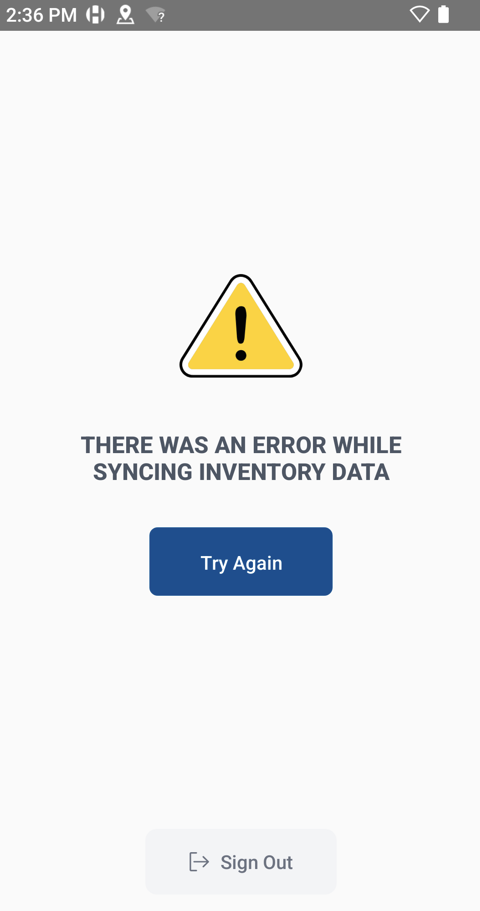
THERE WAS AN ERROR WHILE SYNCING INVENTORY DATA
Not having a Consistent Connection Throughout the Building
If you’re able to log in to the scanner via the QR on your PC but receive the error, “THERE WAS AN ERROR WHILE SYNCING INVENTORY DATA”, when selecting an order to receive under “Receive Shipment” or selecting “Reconcile Stock”, it may be that the internet connection throughout the store is inconsistent. This is especially likely to be the cause of this error if you see that the signal icon on the top right of the screen is empty when it occurs, indicating that the device does not currently have connection.
Try attempting to select reconcile or select an order to receive while still near the PC. You won't need an internet connection between that initial syncing and scanning the QR at the end, so the inconsistent internet connection in the rest of the building should not impact your process beyond needing to initiate (and save at the end of the process) near the PC.
Network Connection Consistently Displays empty or with a “X”
.png?cb=88ec3278183af1450f1690646b4f6c1a)
.png?cb=17f2d871473f1093939604d08085ff99)
The steps to resolve this issue are:
1. Try Forgetting the Network and Reconnecting
-
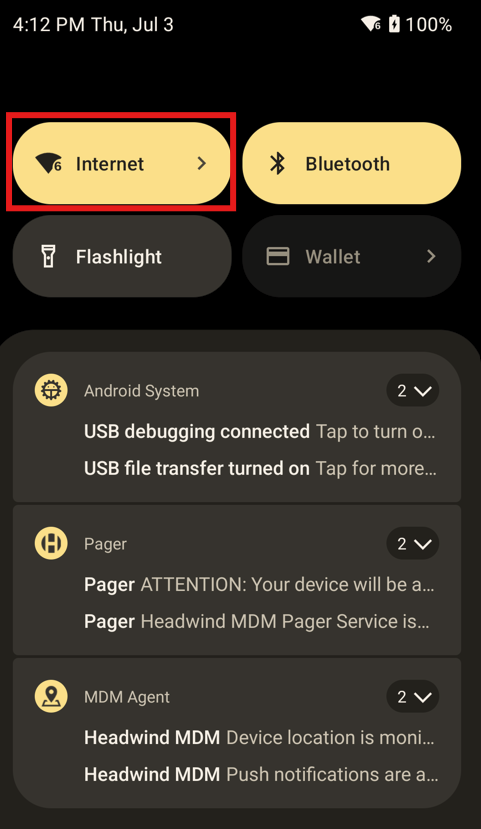
Swipe down from the top of the Android device
-
Select “Internet” towards the top left
-
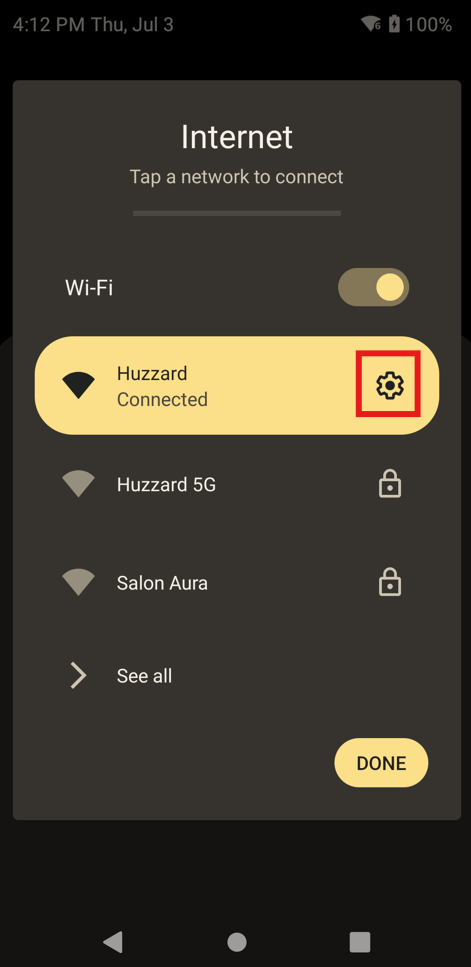
Select the gear next to the highlighted network
-
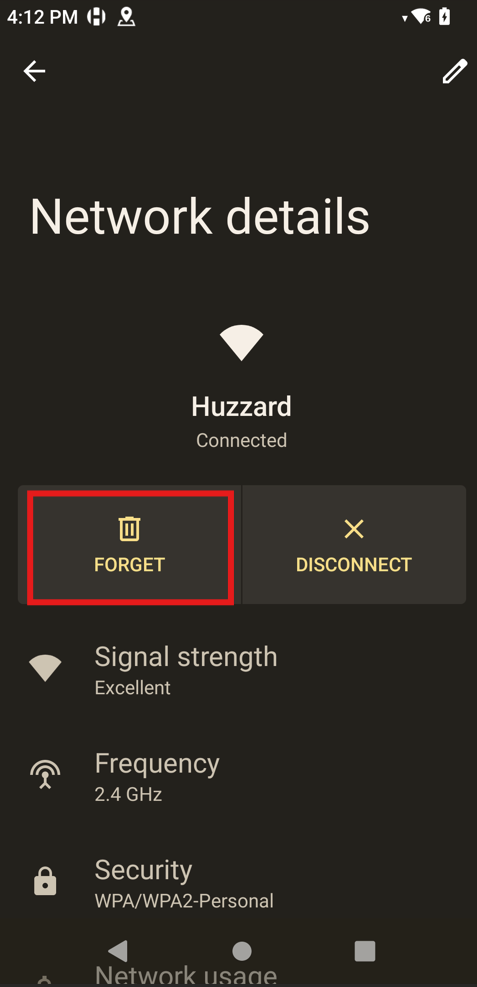
Make note of which network this is and then select “Forget”
-
Repeat steps 1 and 2, select that same network from the list, and reconnect
-
At this point, test if your connection issues are resolved
2. Contact Your Internal IT Support Team if Problems Persist
Miscellaneous Errors
Customer Error: Can't find the customer
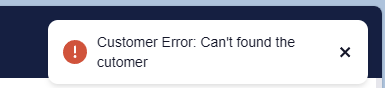
This error, “Customer Error: Can’t find the customer”, occurs when a user creates a purchase order for a location that they are assigned to in Vego Inventory, but not in the supplier’s database. You will need to reach out to your supplier so they can assist with assigning you to the proper locations.
"XXX Errors. The following updates failed to sync" error
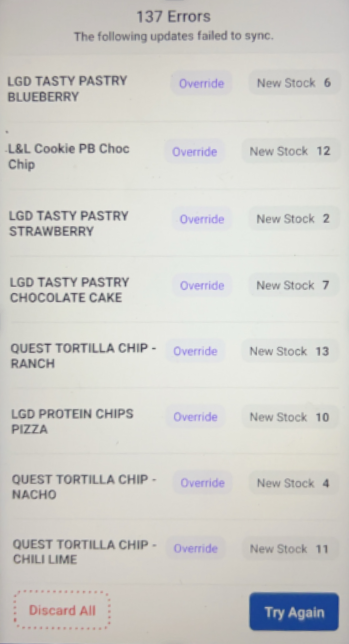
If you encounter this error at the end of your reconciliation or shipment receival, please open a Vego Inventory ticket so that we can assist you in determining the root cause.
If you encounter this error, DO NOT continue to press try again. Doing so may lead to replicated adjustment or received order records, creating inaccurate data. If you have already hit the try again button, please include that information on the ticket you create for us.
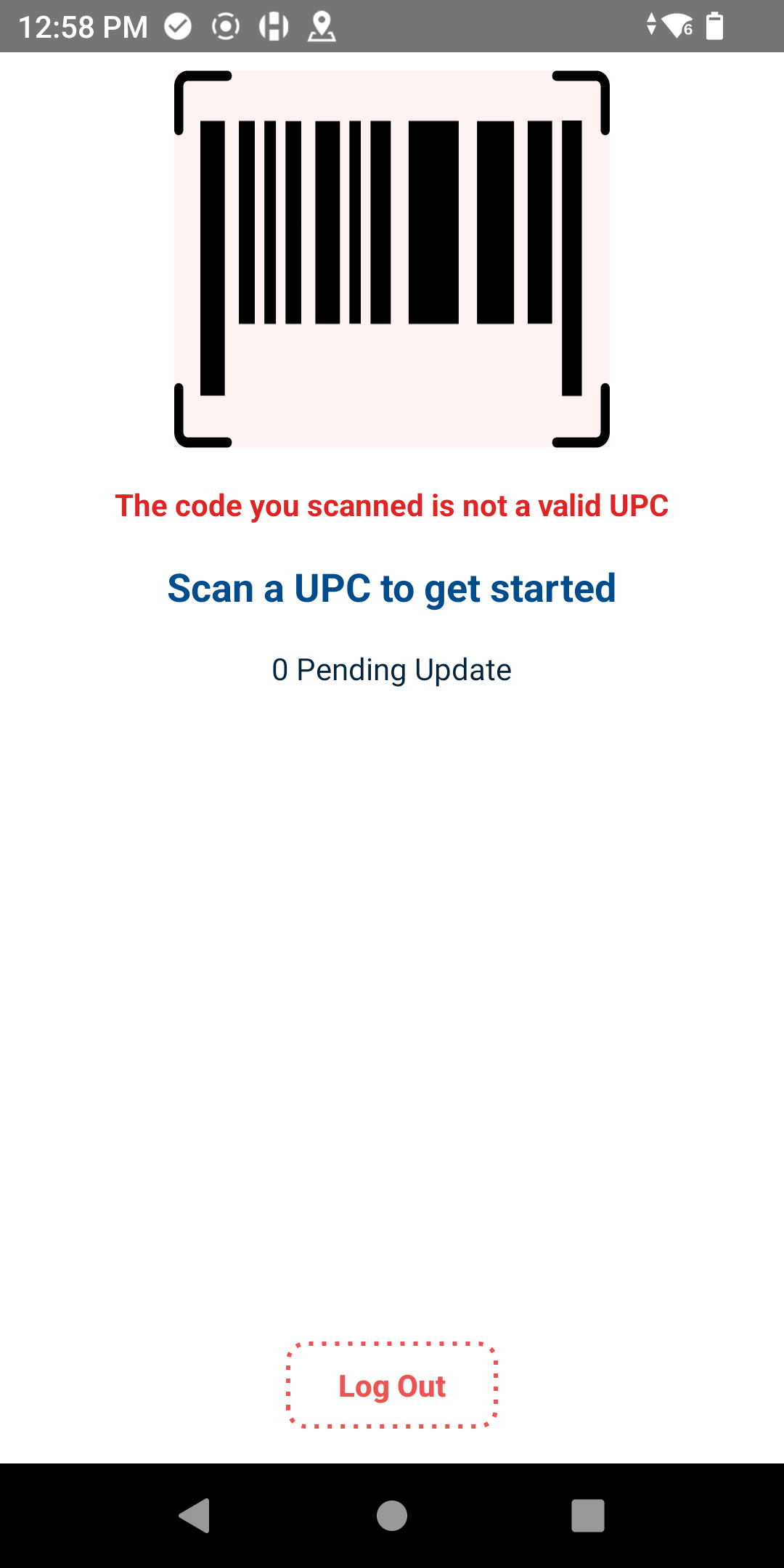
The code you scanned is not a Valid UPC
This error is most likely to occur when you scan the Web browser’s QR code prior to selecting “Save All” but will occur anytime you scan a barcode other than a valid UPC barcode during a reconciliation or shipment receival.
UPC Does Not Match Any Items
This message means that the barcode scanned is a valid barcode, but not yet linked to any items.
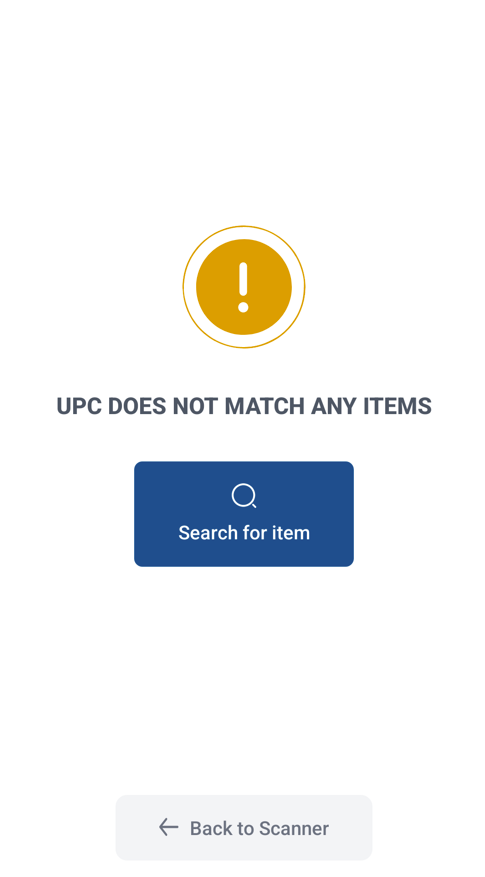
If the UPC should be linked to an item, you can follow this link to Request a UPC to be added to an item.
Trying to Save Inventory to a Different Location than Originally signed into
At the end of performing a Reconciliation or receiving an order, if you scan a different location’s QR code than the one you used to log into the mobile device, you will encounter the error message “The code you’ve scanned is for a different location. Please select the correct location and scan again.”
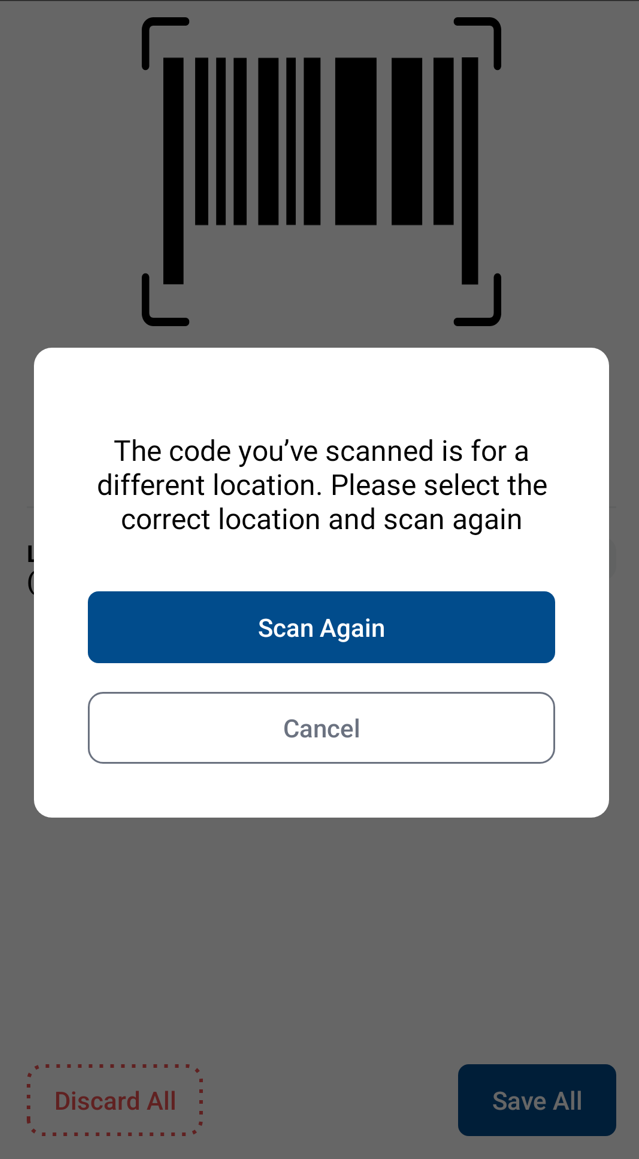
In order to continue, you will need to scan the same location code as you originally signed in under.
If you instead wish to do reconciliation for the location you are now trying to scan, you will need to select “Discard All”, sign out of the mobile device, and log back in using the correct location code.
Trying to Save Inventory for a Different User than Originally signed into
At the end of performing a Reconciliation or receiving an order, if you scan a different user’s QR code than the one you used to log into the mobile device, you will encounter the error message “The code you’ve scanned is for a different user. Please select the correct QR and scan again.”
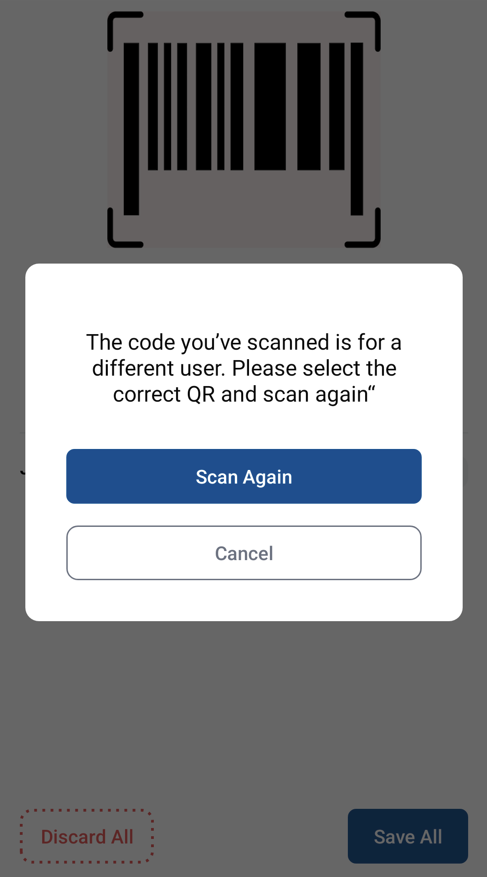
In order to continue, you will need to scan the same user code as you originally signed in under.
If you instead wish to do reconciliation for the user you are now trying to scan, you will need to select “Discard All”, sing out of the mobile device, and log back in using the new user’s QR code.